
EventLab — Documentation
A simple, lightweight event calendar for Joomla 5 & 6.
EventLab gives clubs, societies and community groups a clean event calendar without the weight of a full events suite. Add one-off or repeating events, show them in a month calendar or an upcoming list, put the next few events on your home page, and let trusted members add events from the front end.
Requirements
- Joomla 5.0 or later (including Joomla 6)
- PHP 8.1 or later
- MySQL 5.7+ or MariaDB 10.3+
Installation
- Download the
pkg_eventlab-1.1.2.zippackage file. - In your Joomla admin panel, go to System > Install > Extensions.
- Upload the package file and click Upload & Install.
- The installer sets up the EventLab component, the Upcoming Events module and an Events category.
- Go to Components > EventLab to get started.
Installing over an earlier version keeps your events and categories.
Getting Started
Setting up categories
Categories are event types — for example “Club Night”, “Tournament” or “Social”.
- Go to Components > EventLab > Categories.
- Edit the Events category, or click New to add more.
- Under Options, choose a Colour. The calendar uses it for the category’s events and its legend swatch. Leave it empty for the default blue.
- Click Save.
Adding an event
- Go to Components > EventLab > Events and click New.
- Enter a Title and choose a Category.
- Set the Start and, optionally, the End. Tick All day if the time doesn’t matter.
- Add a Location and a Description.
- Set up repeats on the Repeat tab if needed (see below).
- Click Save & Close.
Times are entered and shown in your site’s time zone (Global Configuration > Server > Website Time Zone), whatever the time zone of the person entering them.
Showing events on your site
Create a menu item under Menus > [your menu] > New > EventLab:
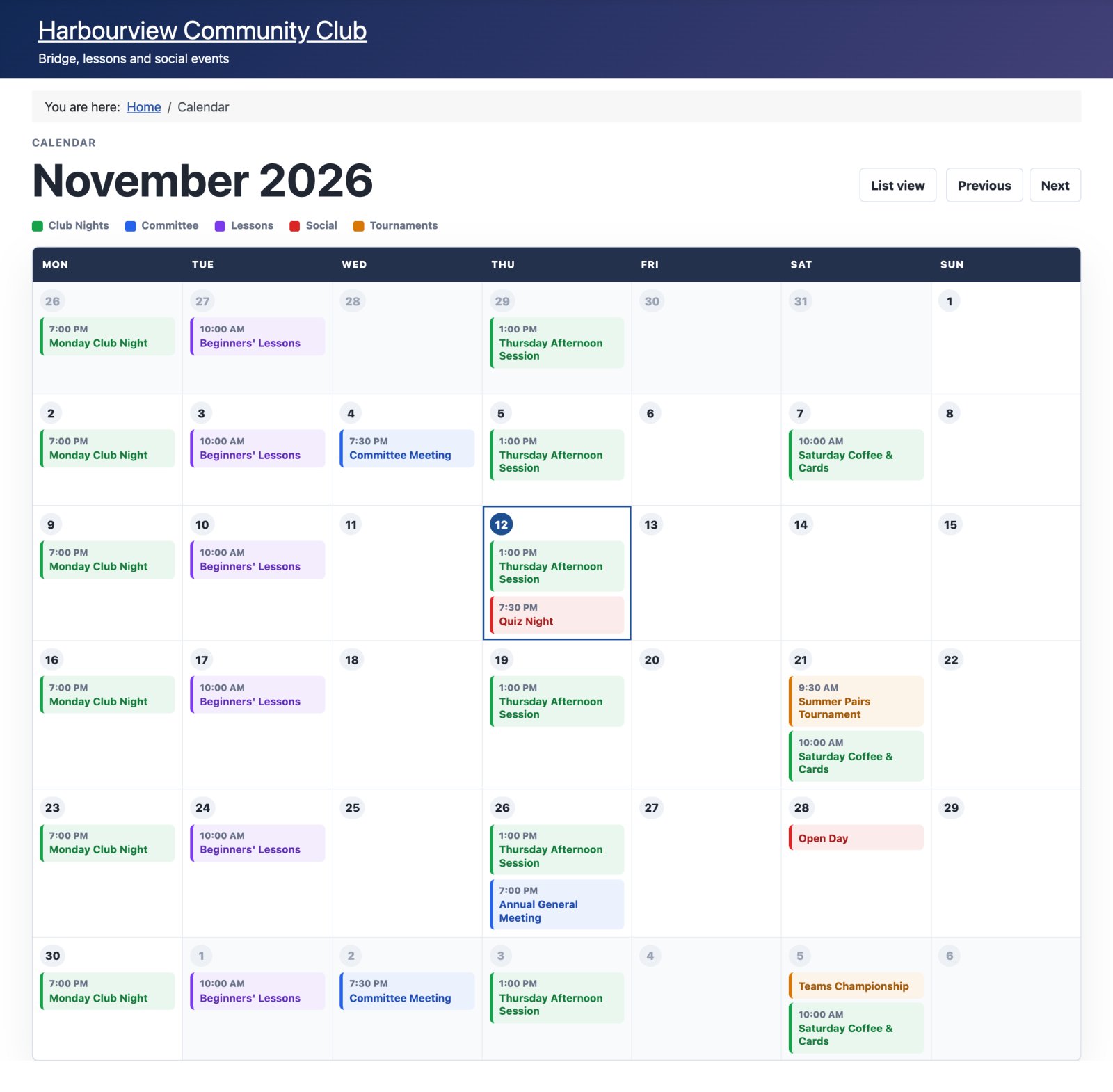
- Month View — a monthly calendar grid with previous/next month links and a colour legend.
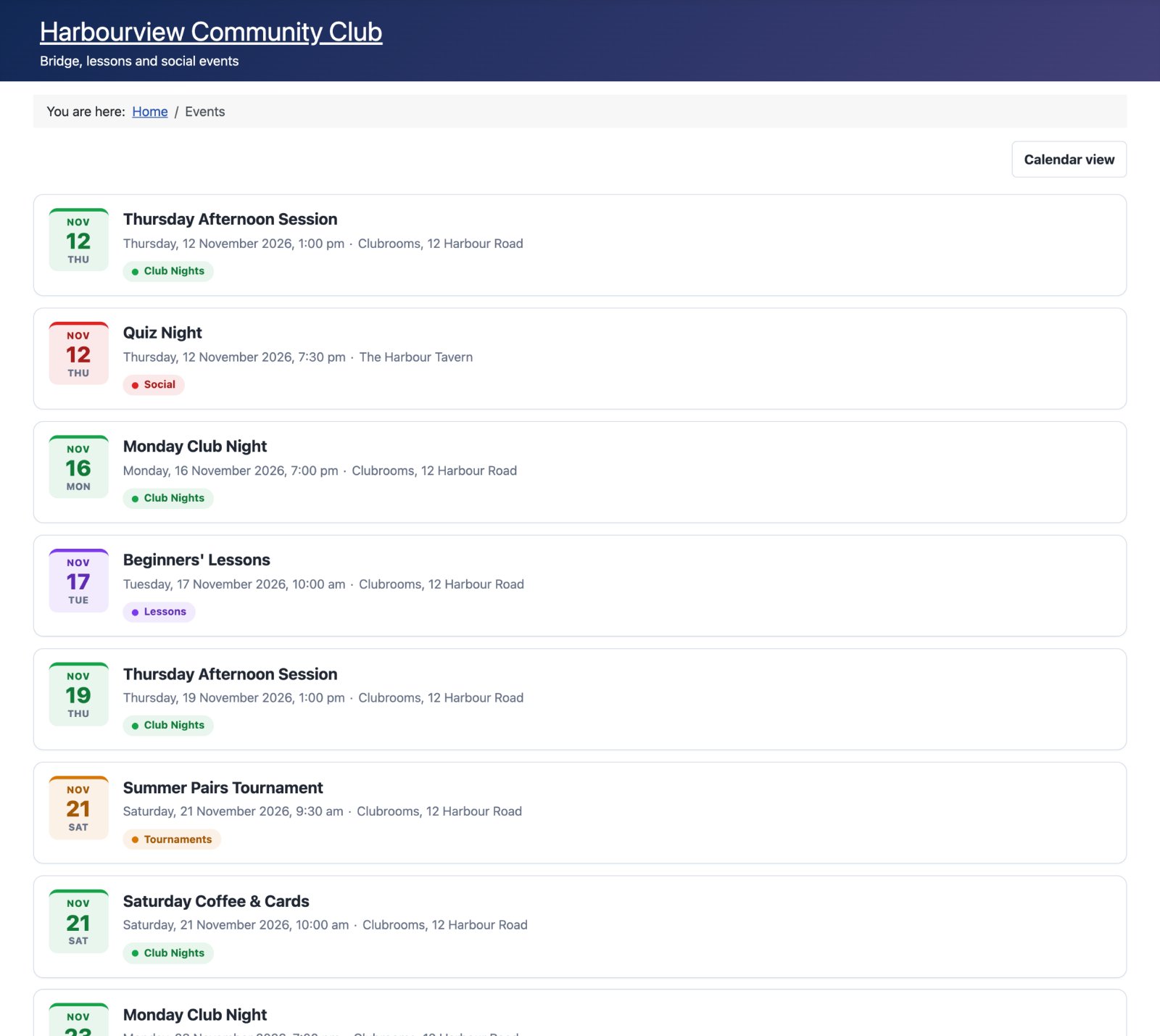
- List View — upcoming events in date order.
- Event — a single event.
- Event Form — a form for authorised users to add events from the front end.
List View and Month View menu items have a Category option to show just one category’s events, for example a separate “Tournaments” page.
A month calendar at /calendar gives tidy addresses such as /calendar?month=2026-12 for other months and /calendar/12-quiz-night for single events.
Repeating Events
On the Repeat tab of an event:
- Repeat — daily, weekly, monthly or yearly.
- Every — the interval, for example 2 for every second week.
- Repeat on — the days of the week, for weekly events.
- Monthly mode — the same date each month (the 14th) or the same weekday position (the second Tuesday).
- Repeat until — an optional end date.
- Maximum occurrences — an optional limit on how many times it repeats.
- Skipped dates — dates to leave out, such as holidays or cancellations, as
YYYY-MM-DD, one per line.
A repeating event is stored once and expanded when the calendar is shown, so changing the series updates every date. A weekly 7 pm event stays at 7 pm when daylight saving starts or ends.
Clicking a date in the calendar opens the event page for that date, with a summary such as “Repeats weekly on Tuesday”.
Upcoming Events Module
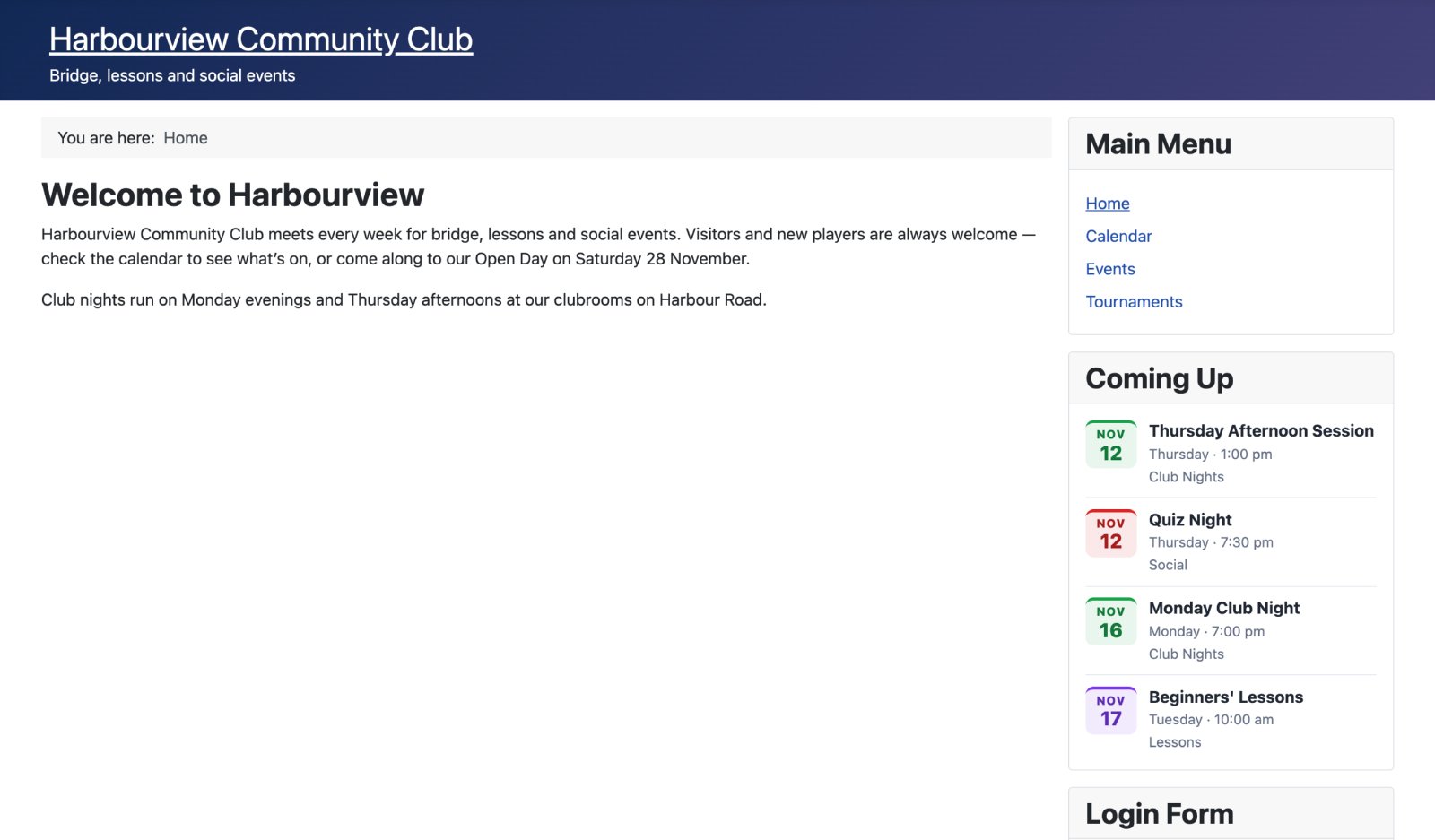
The EventLab Upcoming Events module lists the next few events — ideal for a home page or sidebar.
- Go to Content > Site Modules and click New.
- Choose EventLab Upcoming Events.
- Set the options below, choose a position and assign it to pages.
- Click Save & Close.
Front-end Editing
Members can add and manage events from the website without using the admin panel.
- Create an Event Form menu item, usually in a members-only menu.
- Give the right user groups permission under Components > EventLab > Options > Permissions:
- Create — add new events
- Edit — edit any event
- Edit Own — edit events they created
- Edit State — publish and unpublish events
- Delete — delete events
- Logged-in users with permission see Edit, Publish, Unpublish and Delete buttons on events in the List View. Editors also see unpublished events in the list, marked with a badge.
To review new events before they appear, set New Front-end Events to Unpublished in the component options. Submissions from users without Edit State permission are then saved unpublished, and an editor publishes them from the list. Members can still edit or delete their own submissions, but can’t publish them.
Search Engines
Each EventLab view uses the menu item’s Browser Page Title, Meta Description, Robots setting and Page Class. Single events use the event title. Pages follow Joomla’s heading convention: when Show Page Heading is on, the page heading is the main heading and the view’s own title sits below it.
Component Options
Go to Components > EventLab > Options.
EventLab Options
- Default Category — the category selected when creating a new event.
- Date Format — how full event dates are shown, using PHP date format. The default
l, j F Ygives “Tuesday, 14 November 2026”. - Time Format — how times are shown.
g:i agives “7:15 pm”;H:igives “19:15”. - Events To Display — the maximum number of events on a List View page.
- First Day of Week — Monday or Sunday, for the month calendar.
- New Front-end Events — Published or Unpublished (held for review) for events added from the website by users who can’t publish.
Permissions
Standard Joomla permissions for managing, creating, editing, publishing and deleting events.
Module Options
- Number of events — how many upcoming events to show.
- Days ahead — how far ahead to look.
- Category — show only one category’s events.
- Show category — show or hide each event’s category.
- Show location — show or hide each event’s location.
- Empty text — the message shown when there are no upcoming events.
Styling
EventLab’s stylesheet is plain CSS with no dependencies. Category colours are applied with a CSS custom property, so a template can also set them, for example .category-workshops { --eventlab-cat-color: #20735b; }.
Changelog
v1.1.2
- Fixed long-running repeating events with no end date disappearing from the calendar.
- Events respect access levels, category publishing and language on every page and in the module.
- Edit, Publish, Unpublish and Delete buttons and an Unpublished badge in the List View.
- Date Format and Time Format options now apply everywhere.
- Event pages show the date you clicked, a repeat summary and a link back to the calendar.
- Admin list sorting and filters work, with proper messages for publish, trash and delete.
- New options: New Front-end Events, First Day of Week, and Category on List and Month menu items.
- List view and Upcoming Events module restyled with colour-coded date badges; the month calendar becomes a tidy agenda on phones.
- Upcoming Events module offers “All categories” and a clearer Empty text setting.
v1.1.1
- Packaged for the TDCLab extensions site, with automatic update notifications in Joomla.
- Joomla 5 and 6 compatibility declared in the installer.
v1.1.0
- Event times follow the site time zone, so they no longer shift with each user’s personal time zone.
- Repeating events keep their time across daylight saving changes.
- Tidier web addresses for the month calendar, single events, list and form.
- Each view uses the menu item’s page title, meta description, robots setting and page class.
- A single main heading per page, following Joomla’s convention.
- Front-end publish, unpublish and delete; editors see unpublished events.
- New Colour option for each category; the calendar legend uses it.
- A fresh install creates one “Events” category.
v1.0.0
- First release: month calendar, upcoming list, single event pages, repeating events, front-end event form and the Upcoming Events module.
Support
For help, feature requests or bug reports, visit the EventLab page on the TDCLab extensions site: extensions.thedesigncompany.co.nz
Licence
EventLab is free software released under the GNU General Public License v2 or later.