
PhotoLab — Documentation
A clean photo gallery and download manager for Joomla 5 and 6.
PhotoLab lets you upload images, organise them into categories, publish responsive frontend galleries, preview photos in a lightbox, and let visitors download individual originals or selected images as a ZIP. It includes an administrator dashboard, download logging, and a companion module for showing selected gallery images around your site.

Requirements
- Joomla 5 or Joomla 6
- PHP 8.1 or newer
- GD image extension for thumbnail generation
- Write access to
/images/photolab/
Installation
- In Joomla administrator, go to System > Install > Extensions.
- Upload the
pkg_photolab_v*.zippackage and click Upload & Install. - PhotoLab appears under Components > PhotoLab.
- The PhotoLab module appears in the site module type list.
Administrator Overview
PhotoLab has three main administrator areas:
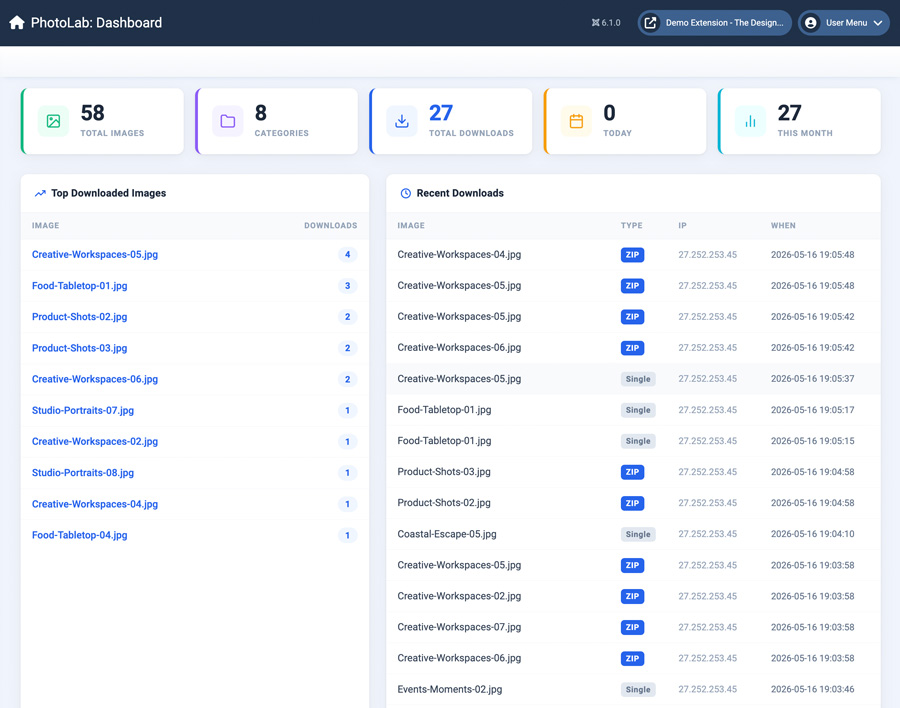
- Dashboard — summary counts, top downloads, and recent download activity.
- Images — upload, edit, publish, unpublish, move, and delete images.
- Categories — create and manage gallery categories.
Creating Categories
- Go to Components > PhotoLab > Categories.
- Click New.
- Enter a category title.
- Add an optional description.
- Set the category to published.
- Click Save & Close.
Category descriptions can be displayed above filtered gallery views so visitors understand the collection they are viewing.
Uploading Images
- Go to Components > PhotoLab > Images.
- Choose a category.
- Select one or more image files.
- Click Upload.
PhotoLab stores original files in /images/photolab/ and generated thumbnails in /images/photolab/thumbs/.
Managing Images
From the Images list you can edit titles, move images between categories, publish or unpublish images, delete files, and review filename, upload date, and category assignment. Unpublished images remain in the administrator area but are hidden from frontend galleries.
Publishing a Gallery
- Go to Menus and open the menu where the gallery should appear.
- Click New.
- Set Menu Item Type to PhotoLab > Gallery.
- Choose a category, or leave it set to all categories.
- Choose the image ordering.
- Enable Show category filter if visitors should be able to switch categories.
- Save the menu item.
The gallery displays published images in a responsive grid with lazy-loaded thumbnails.
Gallery Menu Parameters
- Category — show all categories or limit the gallery to one category.
- Show category filter — display a frontend category dropdown.
- Order by — newest first, oldest first, title A-Z, title Z-A, or random.
Categories Menu Item
- Create a menu item with type PhotoLab > Categories.
- Select the gallery menu item that category links should use.
- Save the menu item.
Visitors can click a category and land on the gallery page filtered to that category.
Lightbox Preview
Clicking a thumbnail opens the lightbox. The lightbox includes a full-size preview area, filename/title display, previous and next navigation, direct original download link, and backdrop or close-button dismissal.
Downloads
Single Image Downloads
Visitors can download an original image from the image card overlay or the lightbox header. Each download is logged with image ID, download type, IP address, and timestamp.
ZIP Downloads
Visitors can select images in the gallery grid and click Download selected as ZIP. PhotoLab creates a ZIP containing the selected original files and logs the activity.
Dashboard
The dashboard shows total images, total categories, total downloads, downloads today, downloads this month, top downloaded images, and recent downloads.
PhotoLab Module
The PhotoLab module lets you show a small set of images in a template module position.
- Category — all categories or a selected category.
- Count — number of images to show.
- Ordering — latest, oldest, or random.
- Link to gallery — optional menu item link for sending visitors to the full gallery.
File Storage
/images/photolab/
/images/photolab/thumbs/
Make sure these folders are writable by Joomla. For production sites, include these folders in normal backup processes because they contain uploaded originals and generated thumbnails.
Template Overrides
PhotoLab uses standard Joomla component and module output files, so site builders can create template overrides for the Gallery view, Categories view, and PhotoLab module layout.
Troubleshooting
Images upload but thumbnails are missing
Confirm PHP GD is enabled and the /images/photolab/thumbs/ folder is writable.
Gallery page is empty
Check that images and categories are published, then confirm the menu item category filter is not pointing to an empty category.
ZIP downloads fail
Confirm PHP has ZIP support enabled and the selected original files still exist in /images/photolab/.
Download counts do not update
Confirm the #__photolab_downloads table exists and Joomla can write to the database.
Support
For help or to report a bug, visit extensions.thedesigncompany.co.nz and submit a support request from the PhotoLab extension page.
Licence
PhotoLab is released under the GNU General Public License v2 or later. See GNU GPL v2.