

Creating quizzes in Joomla does not need to be complicated. Whether you are building student assessments, training modules, or something interactive for your website, the key is using a system that is fast to set up and easy to manage.
In this guide, we will walk through how to create a fully working quiz in Joomla, including CSV import, instant feedback, and certificates.
Step 1: Install a Quiz Extension
Start by installing a quiz extension that supports multiple question types and CSV import.
For this example, we will use QuizLab, a lightweight Joomla quiz component designed for fast setup and a clean user experience.
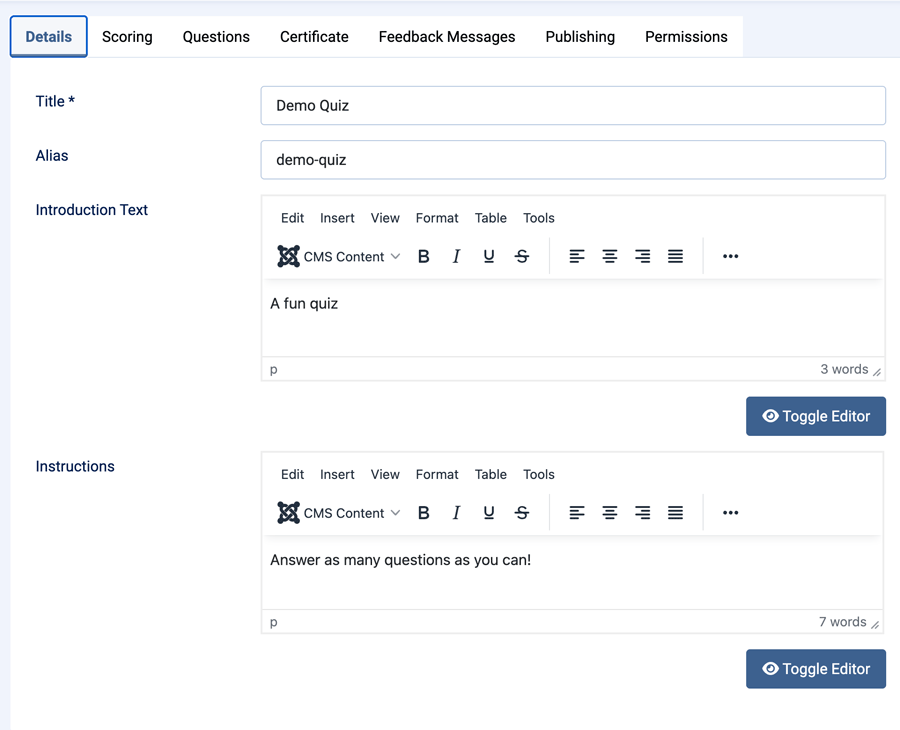
Step 2: Create a New Quiz
- Go to QuizLab > Quizzes
- Click New
- Add your title, introduction text, and instructions
Step 3: Add Questions
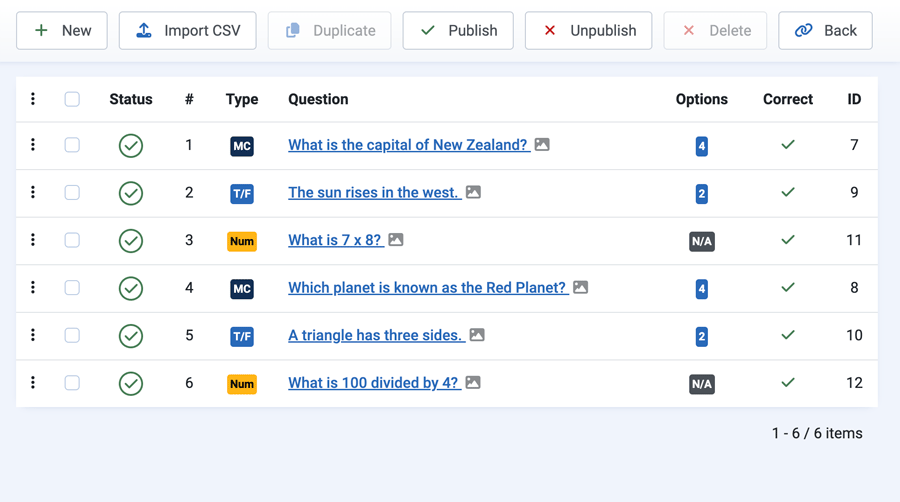
You can add questions manually or import them using CSV.
- Multiple choice
- True / false
- Numeric
Step 4: Import Questions with CSV
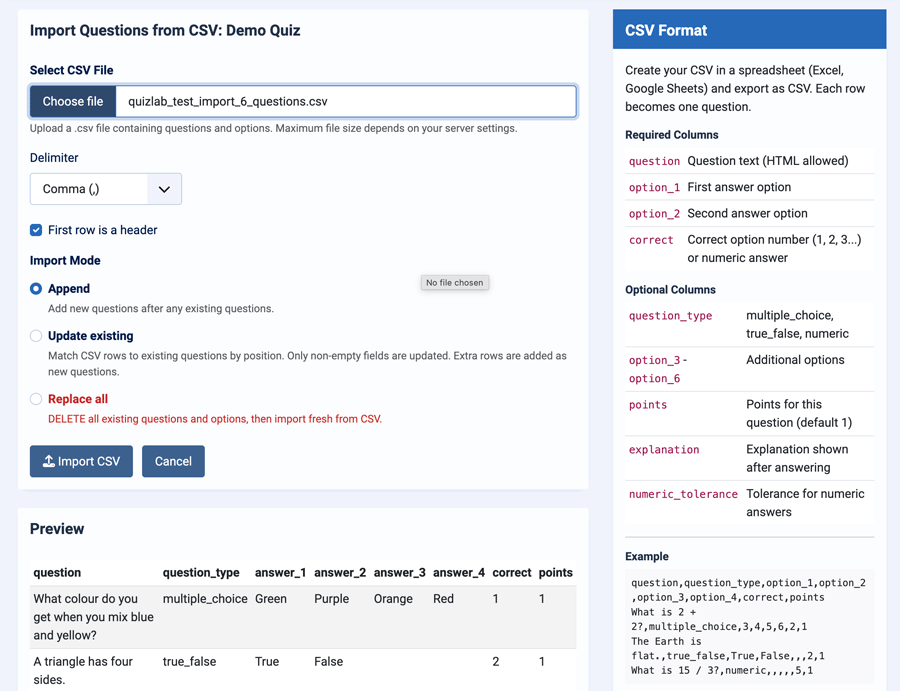
CSV import allows you to build quizzes quickly using Excel or Google Sheets.
questionanswer_1 → answer_4correct
Upload your CSV, preview, and import.
Step 5: Configure Scoring & Feedback
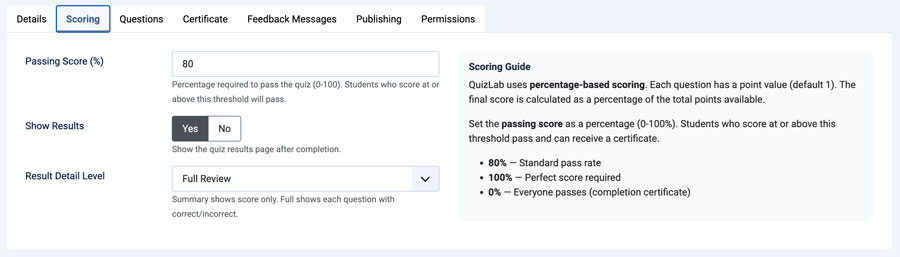
- Set pass percentage
- Configure feedback messages
- Adjust button labels
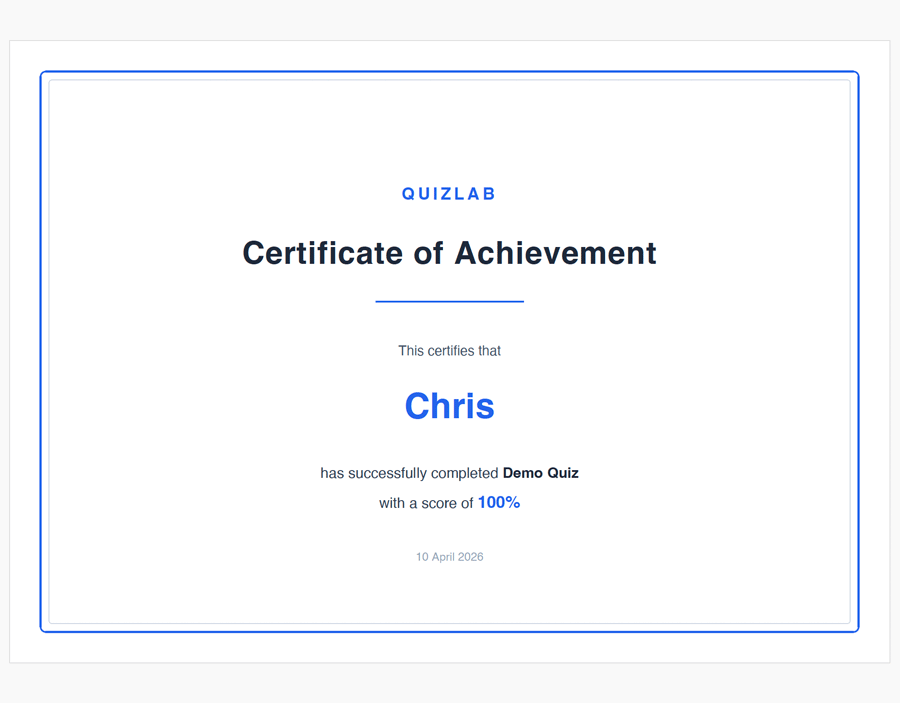
Step 6: Add Certificates
Users who pass can generate a downloadable PDF certificate. Ideal for education and training.
Step 7: Publish the Quiz
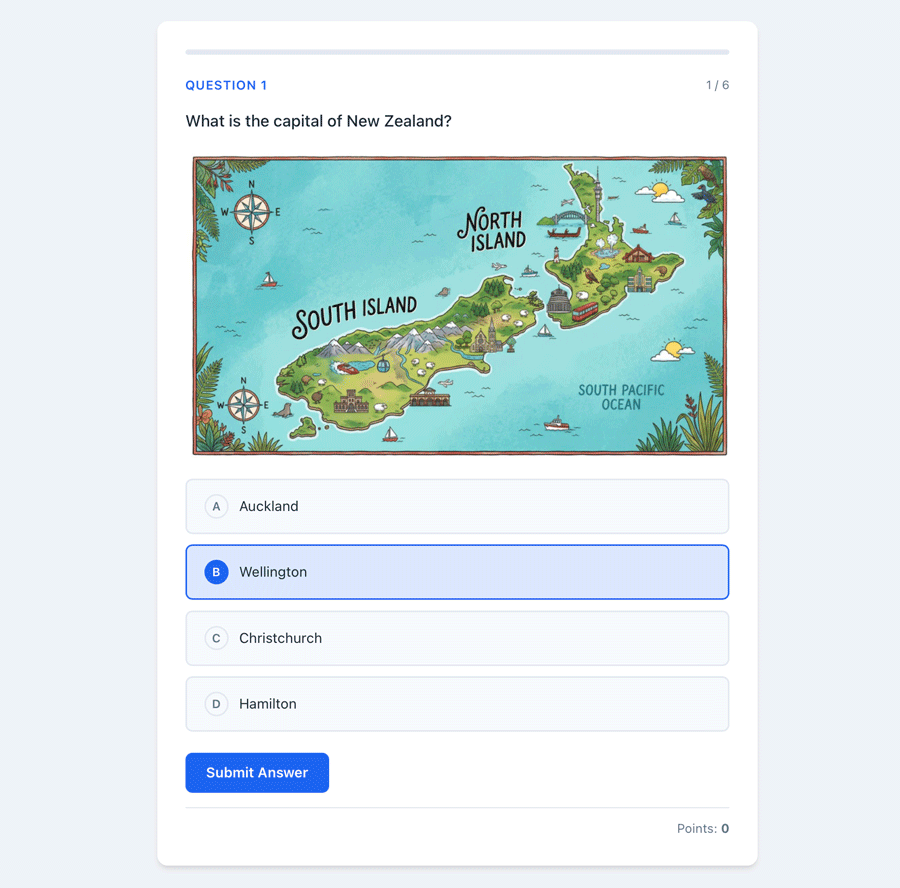
- Display via menu item
- Users answer questions
- Instant feedback + results
Final Thoughts
With CSV import, instant feedback, and certificates, QuizLab makes creating quizzes in Joomla fast and straightforward.