
GalleryLab Pro — Documentation
A professional media gallery and showcase extension for Joomla 5 and 6.
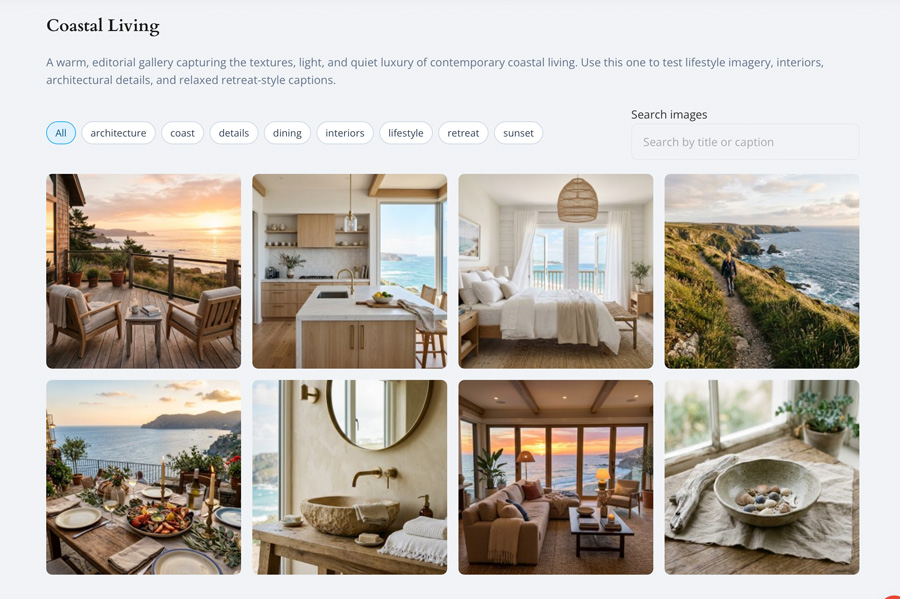
GalleryLab Pro helps Joomla site owners build polished image and mixed-media galleries with responsive gallery pages, lightbox presentation, tagging, import tools, gallery listing pages, and a flexible Showcase module for slideshows, sliders, carousels, and featured image blocks. It is designed for portfolios, creative studios, venues, product showcases, case studies, hospitality sites, e-commerce content, events, and visual brands that need media to feel presentation-ready.
Requirements
- Joomla 5.x or 6.x
- PHP 8.1+
- MySQL 5.7+ or MariaDB 10.3+
Installation
- Download the latest release from extensions.thedesigncompany.co.nz.
- In your Joomla administrator, go to System > Install > Extensions.
- Upload the pkg_gallerylabpro_v*.zip package and click Upload & Install.
- GalleryLab Pro appears under Components > GalleryLab Pro.
- Create a gallery, add images, then publish it as a menu item or Showcase module.
The package installs:
- com_gallerylabpro, the administrator and frontend gallery component.
- mod_gallerylabpro_showcase, the frontend slideshow, slider, carousel, and featured showcase module.
- A content plugin for GalleryLab Pro embed workflows.
- A system plugin for licence/update-site synchronisation.
Getting Started
Creating Your First Gallery
- Go to Components > GalleryLab Pro > Galleries.
- Click New.
- Enter a Title and optional description.
- Set an alias if you want to control the URL segment.
- Choose a cover image when one is available.
- Set the gallery to Published.
- Click Save.
Use galleries for separate media collections such as:
- Portfolio projects.
- Venue spaces.
- Product ranges.
- Event albums.
- Case studies.
- Campaign galleries.
- Team or brand imagery.
Gallery Display Settings
Each gallery has its own display settings, so different galleries can use different presentation styles.
Layouts include:
- Grid - a regular responsive image grid.
- Masonry - a variable-height layout suited to mixed portrait and landscape images.
- Justified - image rows are balanced by aspect ratio using a target row height.
- Video Gallery - a layout tuned for video-style thumbnail cards and supporting text.
Gallery-level style options include columns, justified row height, gap size, border radius, hover effect, overlay background colour, overlay text colour, and the default image title source.
Gallery-level behaviour options include tag filters, multiselect filters, search, lightbox slideshow controls, slideshow interval, slideshow transition, social sharing, and custom CSS scoped to that gallery.
To reuse a saved gallery's presentation, open that gallery and select Copy settings to galleries in the toolbar. Select one or more destination galleries, then choose whether to copy Display and behaviour, Custom CSS, or both. The selected settings replace the destination values once; later edits to the source do not update the destinations. Titles, descriptions, cover images, media, publication state, and URLs are preserved. Save changes to the source gallery before copying.
When creating a gallery, use Start with settings from... on the New Gallery form. Selecting an existing gallery fills the display and behaviour controls and Custom CSS editor before you save. You can review and change those values, while entering a new title, description, cover image, and publication state for the new gallery. Selecting a different source replaces the loaded settings again.
The Default Image Title Source setting controls visible image titles throughout the gallery, lightbox, slideshow, shortcode output, and Showcase modules. Choose Saved image title, Filename, Gallery title, or No title. New and existing images inherit this setting unless their Title Source field selects an override. Captions and alternative text are separate, so No title can be used with a caption. Alternative text is still applied to the media for accessibility and is not displayed as a replacement lightbox heading.
Adding Images
- Go to Components > GalleryLab Pro > Images.
- Click New.
- Select the gallery.
- Choose or upload the image.
- Add a title, alt text, caption, tags, and ordering.
- Set the image to Published.
- Click Save & New or Save & Close.
Good image records make the frontend stronger:
- Use alt text for accessibility and SEO.
- Use titles for short labels.
- Use captions when images need context in the lightbox or Showcase module.
- Use tags to create curated subsets for filtering or Showcase output.
- Keep ordering intentional so galleries and modules tell the right visual story.
Quick Add From Media Manager Folders
Quick Add is the fastest way to populate a gallery from image files that are already in Joomla's Media Manager.
- Upload images to a folder in Content > Media or System > Media, depending on your Joomla administrator menu.
- Go to Components > GalleryLab Pro > Images.
- Click Quick Add in the toolbar.
- Select the target gallery.
- Select the folder path under images/.
- Choose whether to include subfolders.
- Choose how duplicates should be handled:
- Skip existing - already-imported image paths are shown but not selected for import.
- Update existing - existing image records can be selected and updated.
- Click Preview Import.
- Review the preview table.
- Select or deselect individual files.
- Click Import Selected.
Quick Add supports common web image formats including JPG, PNG, GIF, WebP, AVIF, and SVG. It generates an initial saved title from each filename, for example `gallery-main-room.jpg` becomes `Gallery Main Room`. The gallery or image title-source setting determines whether visitors see that saved title, the filename, the gallery title, or no title.
The folder selector scans the Joomla images/ directory and its subfolders, while skipping common Joomla system image folders at the top level. If you upload new files while Quick Add is open, return from Media Manager and refresh or reopen Quick Add so the folder list and preview reflect the new files.
Import Image Details From CSV
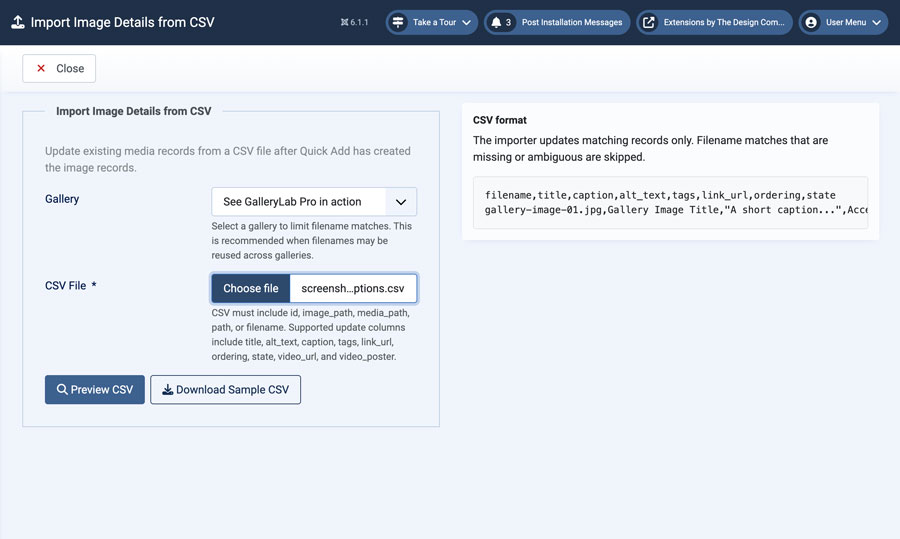
Use Import CSV after Quick Add when the files are already in GalleryLab Pro but the titles, captions, alt text, tags, ordering, or publication state need to be filled in from a spreadsheet.
- Go to Components > GalleryLab Pro > Images.
- Click Import CSV in the toolbar.
- Click Download Sample CSV if you want a starter file with the supported columns.
- Choose a gallery to limit filename matching. This is recommended when different galleries may reuse the same filenames.
- Upload the CSV file.
- Click Preview CSV.
- Review the preview table. Matched rows show the existing media item that will be updated. Missing or ambiguous rows are marked as skipped.
- Select or deselect matched rows.
- Click Import Details.
The CSV must include one matching column: id, image_path, media_path, path, or filename. Supported update columns are title, alt_text, caption, tags, link_url, ordering, state, video_url, and video_poster.
CSV import updates existing media records only. It does not create image records or upload files. Use Quick Add first when you need to create records from files in Joomla Media Manager.
Publishing A Gallery Page
- Go to Menus and create a new menu item.
- Set the Menu Item Type to GalleryLab Pro > Gallery.
- Select the gallery.
- Save the menu item.
Creating a menu item gives the gallery a stable Joomla route. Showcase links that open the full gallery use the matching Gallery menu item when one exists, which helps preserve SEF URLs, breadcrumbs, module assignment, template style, and page context.
Publishing A Gallery With A Shortcode
GalleryLab Pro includes a content plugin for embedding galleries inside articles and custom HTML content.
Use the gallery ID inside the shortcode:
{gallerylabpro 12}You can also use named attributes:
{gallerylabpro id=12}
{gallerylabpro gallery=12 width=720px class="portfolio-gallery"}
Shortcode options:
idorgallery- the gallery ID to display.width- optional width usingpx,%,rem,em, orvw. When omitted, the embed is full-width and responsive.class- optional custom class added to the shortcode wrapper.title- set to0to hide the gallery title header.false,no, andoffalso hide it.
Examples:
{gallerylabpro 12 title=0}
{gallerylabpro id=12 width=80% title=off}
The title option controls the gallery title header only. Image title overlays still follow the global Show Image Titles option and the selected gallery layout.
Publishing A Gallery Listing
- Go to Menus and create a new menu item.
- Set the Menu Item Type to GalleryLab Pro > Galleries.
- Optionally exclude selected galleries from the listing.
- Save the menu item.
The Galleries page displays published galleries as cards with cover images, titles, descriptions, and image counts. Use it for portfolio indexes, project archives, venue galleries, product media libraries, or event collections.
Administrator Workflow
Galleries
The Galleries manager is where you create and maintain gallery records. A gallery controls the public collection and gives images a shared frontend destination.
Typical gallery tasks:
- Create a new gallery.
- Edit the title, alias, description, and state.
- Set or update the cover image.
- Choose a layout: grid, masonry, justified, or video.
- Configure gap, corners, hover effect, and overlay colours.
- Enable tag filters and search.
- Enable lightbox slideshow and sharing.
- Add custom CSS scoped to that gallery.
- Review image counts.
- Control ordering.
- Open the related image list.
Images
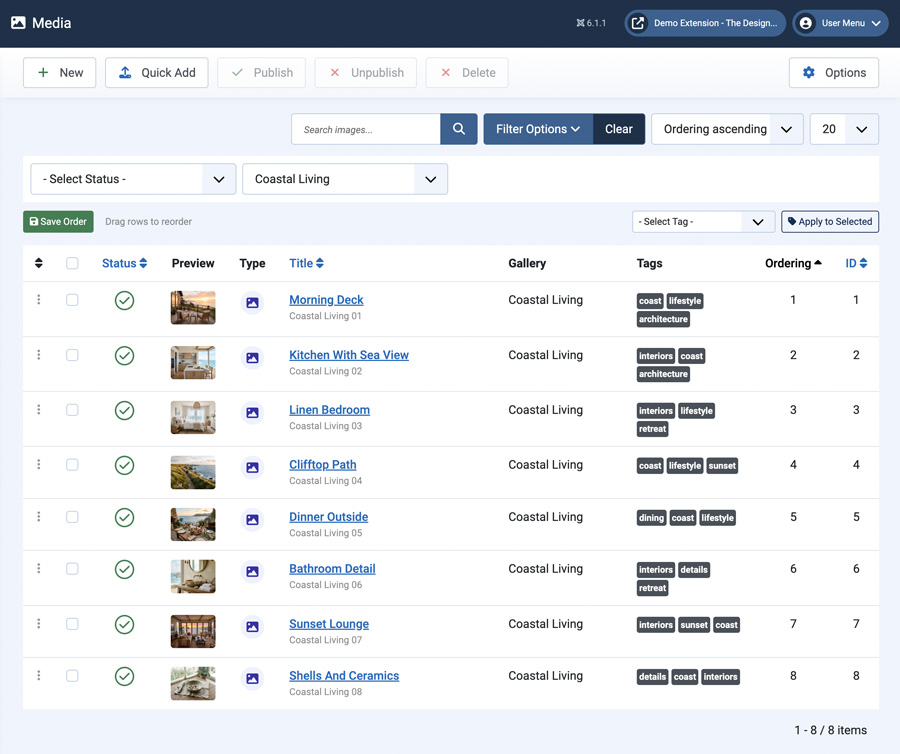
The Images manager is where you maintain individual media records.
Typical image tasks:
- Assign an image to a gallery.
- Set the image path and thumbnail path.
- Choose image or video media type.
- Add a video URL, embed URL, iframe source, or self-hosted video path where required.
- Add a video poster image.
- Add title, alt text, and caption.
- Add tags.
- Set optional link URL or video metadata where enabled.
- Publish, unpublish, reorder, or edit images.
The Images toolbar also includes Quick Add, which imports multiple image files from a Media Manager folder into a selected gallery after a preview step.
The toolbar also includes Import CSV, which updates details for existing media records from a CSV file after a preview step. Use it with Quick Add when image files are imported first and editorial metadata is prepared separately in a spreadsheet.
Tools
The Tools area includes migration and maintenance workflows such as GalleryLab Free-to-Pro import.
Use it after installing Pro on a site that already uses GalleryLab Free.
Tools also includes Rebuild Thumbnails, which regenerates generated thumbnails from original image files and updates image records. Use it after moving image files, changing generated thumbnails, or cleaning up an older import.
Showcase Module
GalleryLab Pro includes a Showcase module for placing gallery-driven visual sections into Joomla module positions. Use it for homepages, landing pages, headers, product pages, portfolio teasers, venue highlights, and visual calls to action.
Display Modes
Slideshow
Slideshow mode displays one image at a time. It is suited to homepage banners, intro sections, simple visual rotations, and pages where a single large image should carry the presentation.
Options include:
- Autoplay.
- Interval.
- Fade or slide transition.
- Previous and next controls.
- Pagination dots.
- Captions.
- Title overlay.
- Height mode and height value.
- Pause on hover.
Slider
Slider mode is designed for hero-style sections with overlay content and optional buttons.
Use it when a gallery needs to become a landing-page or homepage story block. Slider controls include:
- Overlay position.
- Overlay style.
- Overlay background colour.
- Overlay opacity.
- Overlay text colour.
- Overlay canvas width.
- Button label.
- Button URL.
- Heading size.
Carousel
Carousel mode displays multiple images per view and moves horizontally through the gallery.
Use it for visual strips, related work, product galleries, image previews, and compact homepage sections.
Carousel controls include:
- Desktop item count.
- Tablet item count.
- Mobile item count.
- Items to scroll.
- Controls.
- Dots.
- Autoplay.
- Pause on hover.
Featured
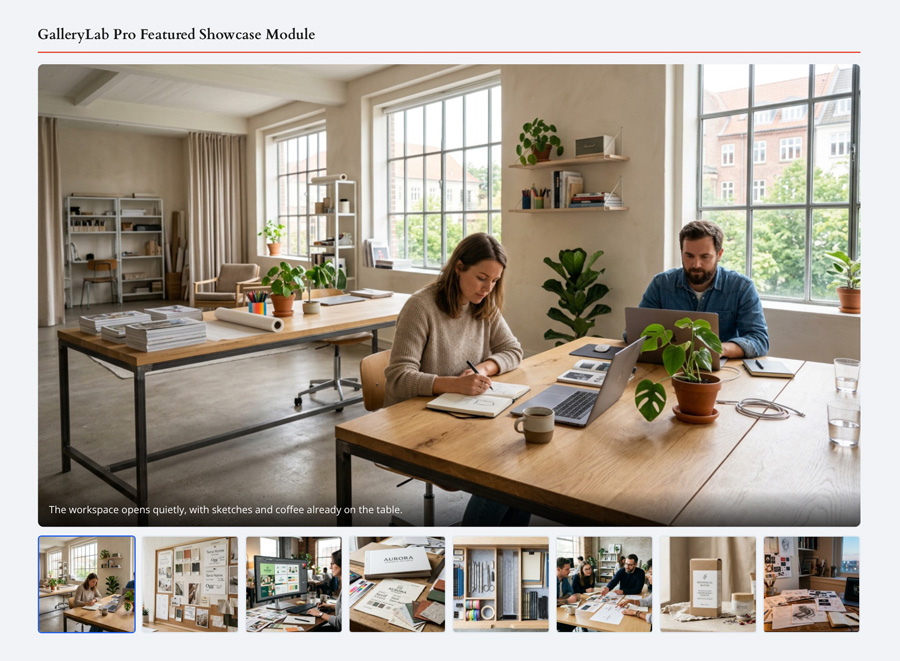
Featured mode displays one large primary image with thumbnails underneath. Clicking a thumbnail swaps the primary image.
Use it for:
- Product pages.
- Portfolio highlights.
- Venue feature sections.
- Case study image selectors.
- Compact visual teasers.
Featured mode can also link to the full gallery or individual image URL depending on the Link Behaviour setting.
Showcase Image Sources
The module can choose images from the selected gallery in several ways:
- All images - use the gallery's published images.
- Cover image first - move the cover image to the start of the output when available.
- Tagged images - show only images that match the Tag Filter setting.
Tagged Showcase output is useful when one gallery contains many images but a module should only show a curated subset such as featured, homepage, interiors, menu, or products.
Showcase Ordering
Image ordering options include:
- Gallery order.
- Reverse gallery order.
- Title A-Z.
- Title Z-A.
- Newest.
- Oldest.
- Random.
Use random ordering for visual variety. Use gallery order when the image sequence is editorial or story-driven.
Link Behaviour
Showcase items can use:
- None - images are not links.
- Open full gallery - links to the selected gallery page.
- Open image - links directly to the image or video URL where available.
When Open full gallery is selected, GalleryLab Pro checks for a matching Gallery menu item and uses that menu-backed route. If no matching menu item exists, it falls back to the component gallery URL.
Lightbox
When lightbox is enabled, gallery images open in a focused overlay so visitors can view media without leaving the gallery page.
Lightbox quality depends on image metadata:
- Titles provide concise identification.
- Captions add context.
- Alt text supports accessibility.
- Image ordering controls the browsing sequence.
If a site does not need lightbox behaviour, it can be disabled globally in the component options.
Lightbox Slideshow
Each gallery can enable slideshow controls inside the lightbox. When enabled, visitors can play or pause an automatic sequence through the gallery items.
Gallery slideshow settings include:
- Enable slideshow.
- Interval from 2 to 10 seconds.
- Fade or slide transition.
- Fullscreen button.
- Previous and next navigation.
Video items are not auto-advanced while playing.
Social Sharing
Each gallery can enable sharing actions in the lightbox.
Share actions include:
- Facebook.
- X.
- Pinterest.
- WhatsApp.
- Copy link.
Use sharing on public galleries where individual images are useful social content. Leave it disabled for galleries that are mainly decorative or internal to a page.
Tags, Filtering, And Curated Output
Tags are useful for both gallery organisation and module curation.
Common tag patterns:
- featured
- homepage
- interior
- exterior
- products
- events
- team
- case-study
- detail
Use tags consistently. A simple tag vocabulary makes it easier for administrators to control which images appear in Showcase modules and future filtering interfaces.
Frontend Tag Filters And Search
When tag filters are enabled on a gallery, GalleryLab Pro displays clickable tag buttons above the gallery. The All button resets the filter.
When multiselect is enabled, visitors can combine multiple tags. When multiselect is disabled, selecting a tag replaces the previous tag.
When search is enabled, visitors can filter by image title and caption. Tag and search state can be reflected in the URL hash, which makes filtered views easier to share.
Video Items
GalleryLab Pro supports video records alongside image records.
To add a video item:
- Go to Components > GalleryLab Pro > Images.
- Click New.
- Select the gallery.
- Set Media Type to Video.
- Add a YouTube, Vimeo, generic embed URL, iframe embed code, or self-hosted MP4/WebM path.
- Add a poster image when needed.
- Add title, alt text, caption, tags, and publication state.
- Save the record.
Iframe embed code is stored as entered. For YouTube URLs, a YouTube thumbnail can be used when no poster image is supplied.
Import From GalleryLab Free
Existing GalleryLab Free users can import galleries and images into GalleryLab Pro from the Tools area.
The import process is designed to be non-destructive:
- It detects GalleryLab Free tables when they exist.
- It lists available Free galleries.
- It copies selected Free galleries and images into Pro tables.
- It keeps Free data unchanged.
- It uses mappings to reduce accidental duplicates.
After import:
- Check gallery titles, aliases, descriptions, and cover images.
- Check image titles, alt text, captions, and ordering.
- Add or clean up tags for Showcase use.
- Create menu items for public galleries.
- Test any Showcase modules that point to imported galleries.
Bulk Image Workflows
GalleryLab Pro has several common bulk workflows:
- Quick Add - import image files from Joomla Media Manager folders into one Pro gallery.
- Import CSV - update existing image details from a CSV file after previewing matched and skipped rows.
- Import From GalleryLab Free - copy existing Free galleries and images into GalleryLab Pro tables.
- Rebuild Thumbnails - regenerate generated thumbnails for existing image records.
Use Quick Add when the image files are already organised in /images/ folders. Use Import CSV when titles, alt text, captions, tags, ordering, or state are maintained in a spreadsheet. Use Free-to-Pro import when upgrading an existing GalleryLab Free site.
SEO, Sharing, And URLs
Gallery pages should use clear titles, helpful descriptions, strong cover images, and meaningful alt text. This makes galleries easier for visitors to understand and easier for search engines and social previews to interpret.
Recommended practices:
- Create menu items for important public galleries.
- Use descriptive gallery aliases.
- Write useful gallery descriptions.
- Add alt text to every image.
- Use captions for images that need more context.
- Keep cover images representative of the gallery.
Menu-backed gallery URLs are especially important when modules link to galleries from other parts of the site.
Component Options
Go to Components > GalleryLab Pro > Options.
Common options include:
- Default Columns - default grid column count.
- Show Image Titles - show or hide title overlays where supported.
- Show Captions - show or hide captions in supported views.
- Enable Lightbox - enable or disable lightbox behaviour.
- Lazy Loading - use native lazy loading for gallery images.
- Licence Key - store the ExtensionLab licence key for authenticated package updates.
Settings Reference
Gallery Menu Item
- Selected gallery.
Galleries Menu Item
- Excluded galleries.
Showcase: Basic
- Gallery.
- Display mode.
- Max images.
- Image source.
- Image ordering.
- Tag filter.
- Link behaviour.
- Button label and URL for slider mode.
Showcase: Display
- Show captions.
- Show title overlay.
- Heading size.
- Height mode.
- Height value.
- Corner radius.
- Carousel desktop, tablet, and mobile counts.
- Overlay position.
- Overlay style.
- Overlay background.
- Overlay opacity.
- Overlay text colour.
- Overlay canvas width.
Showcase: Behaviour
- Autoplay.
- Interval.
- Transition.
- Items to scroll.
- Show controls.
- Show dots.
- Pause on hover.
Gallery Record Settings
- Layout.
- Columns.
- Justified row height.
- Gap size.
- Border radius.
- Hover effect.
- Overlay background and text colour.
- Tag filters and multiselect.
- Search.
- Lightbox slideshow.
- Social sharing.
- Custom CSS.
Custom CSS Cheat Sheet
Open a gallery and select the Custom CSS tab. Select Add to editor on any combination of recipe cards, then change the sample values to suit the site. GalleryLab Pro automatically limits these rules to the current gallery, so do not add a gallery ID or <style> tags. The editor skips an unchanged snippet if it has already been added.
Landscape thumbnails (16:9)
Use with the Grid layout to make every thumbnail widescreen.
Portrait thumbnails (4:5)
Use with the Grid layout for taller portrait cards.
Show the complete image
Use with the Grid layout to fit the whole image without cropping. The card follows the image height so title overlays stay aligned. For tightly packed images with mixed proportions, use the Masonry layout instead.
Add a thumbnail border
Use a custom corner radius
Change the space between items
This example works with every gallery layout.
Always show image titles
Style the gallery heading
Troubleshooting
A gallery does not appear
Check that:
- The gallery is published.
- The gallery has published images.
- The menu item points to the correct gallery.
- The image files still exist.
- The gallery is not excluded from the Galleries menu item.
Images do not appear in a Showcase module
Check that:
- The selected gallery is published.
- The gallery has published images.
- Max Images is not set too low.
- Image Source is not set to Tagged without a matching Tag Filter.
- The module is assigned to the current menu item.
- The module is published in a visible template position.
Quick Add does not find my files
Check that:
- The files are inside the Joomla images/ directory.
- The selected folder contains supported image files.
- Include Subfolders is enabled if the files are below the selected folder.
- The filenames do not start with a dot.
- The folder path is relative to the site root, for example images/galleries/project-a.
Quick Add says images already exist
GalleryLab Pro checks existing image paths in the selected gallery. Choose Skip existing to avoid duplicate records, or choose Update existing when you intentionally want to refresh records for files already in the gallery.
CSV import skips rows
Check that the CSV includes id, image_path, media_path, path, or filename, and that each value matches exactly one existing media record. Select a gallery before previewing when the same filenames may appear in more than one gallery.
Showcase opens the wrong gallery URL
Create a published GalleryLab Pro Gallery menu item for that gallery. Showcase full-gallery links use the matching menu item when one exists.
Captions or titles are missing
Check that:
- The image has a title or caption.
- Show Captions is enabled.
- Show Title Overlay is enabled where required.
- The selected display mode supports that text output.
Tag filters or search do not appear
Check that:
- Show Tag Filters or Show Search is enabled on the gallery.
- Images have comma-separated tags when using tag filters.
- The gallery has published images.
- Template overrides are not removing the filter bar.
Video items do not show a thumbnail
Check that:
- The item is set to Media Type: Video.
- A poster image is selected, or the video URL can provide a thumbnail.
- The video URL or self-hosted path is valid.
Custom CSS does not apply
Custom CSS is scoped to the current gallery wrapper. Write selectors as if they sit inside the gallery, for example .gallerylabpro-title { color: #111; }. GalleryLab Pro scopes the selector on output.
GalleryLab Free content did not import
Check that:
- GalleryLab Free is installed or its database tables still exist.
- The Free galleries contain images.
- The selected import mode includes the galleries you expected.
- Existing Pro records were not intentionally skipped.