
MapLab — Documentation
Any locations. Any groups. Any Joomla site.
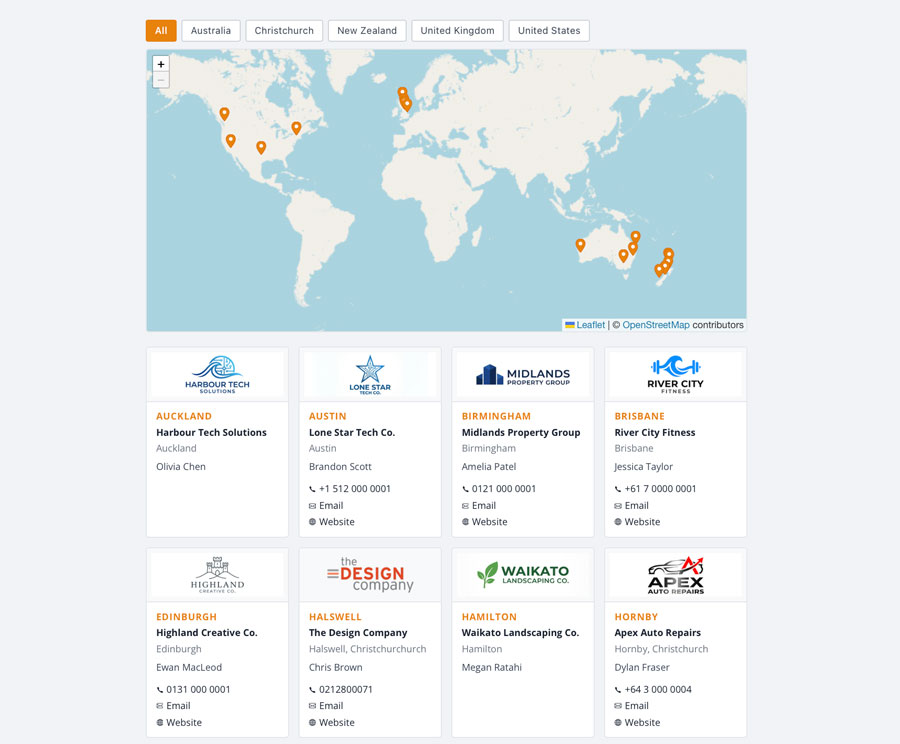
MapLab is a lightweight location map extension for Joomla 5 and 6. Display an interactive, filterable Leaflet map with a location card grid — dealers, agents, stockists, service centres, offices, or any “find a location near you” use case. No Google API key. No jQuery. No dependencies.
Requirements
- Joomla 5.0 or 6.0
- PHP 8.1 or later
- MySQL 5.7+ or MariaDB 10.4+
- Any modern browser (Chrome, Firefox, Safari, Edge)
What’s Included
- com_maplab — Component for backend data management (maps, groups, locations)
- mod_maplab_map — Frontend module with Leaflet map, filter buttons, and card grid
Installation
- Log in to your Joomla administrator.
- Go to System → Install → Extensions.
- Upload
pkg_maplab_v1.0.0.zipusing the Upload Package File tab. - Click Install.
Joomla installs both extensions and creates the database tables automatically. A Default Map is created on install so the module works immediately.
To uninstall, go to System → Manage → Extensions, find MapLab Package, and click Uninstall. All MapLab tables are removed automatically.
Getting Started
Step 1 — Add your groups
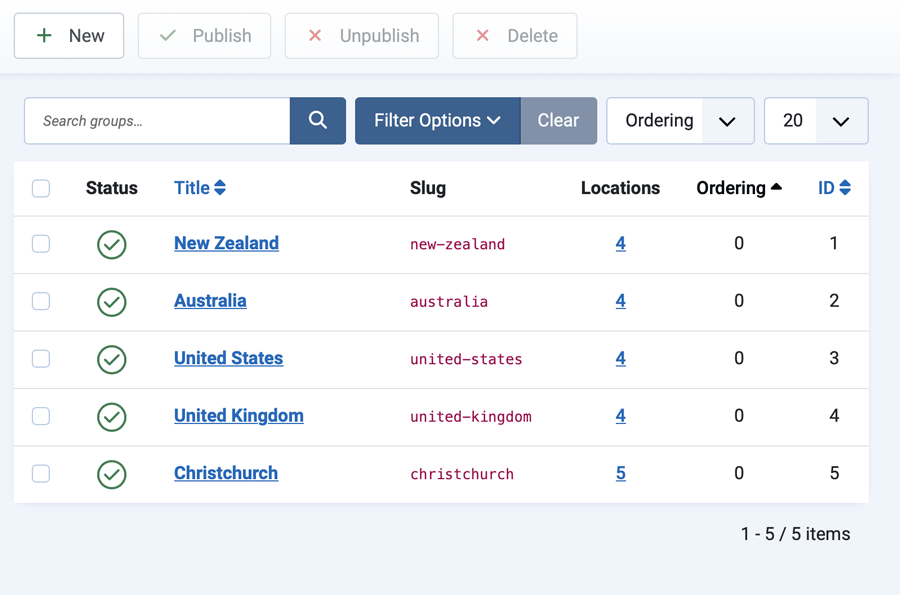
Groups are the filter categories shown as buttons above the map — regions, types, brands, or whatever makes sense for your data.
- Go to MapLab → Groups in the administrator menu.
- Click New.
- Enter a Title (e.g. “North Island”).
- The Slug auto-fills from the title — this is the internal identifier used by the map filter (e.g.
north-island). You can edit it if needed. - Leave Map set to Default Map.
- Click Save & New to add another group immediately, or Save & Close when done.
To control the order filter buttons appear on the frontend, open each group and set the Ordering field. The Locations column in the list shows how many locations are assigned to each group; click the number to jump to the filtered Locations list.
Step 2 — Add your locations
- Go to MapLab → Locations.
- Click New.
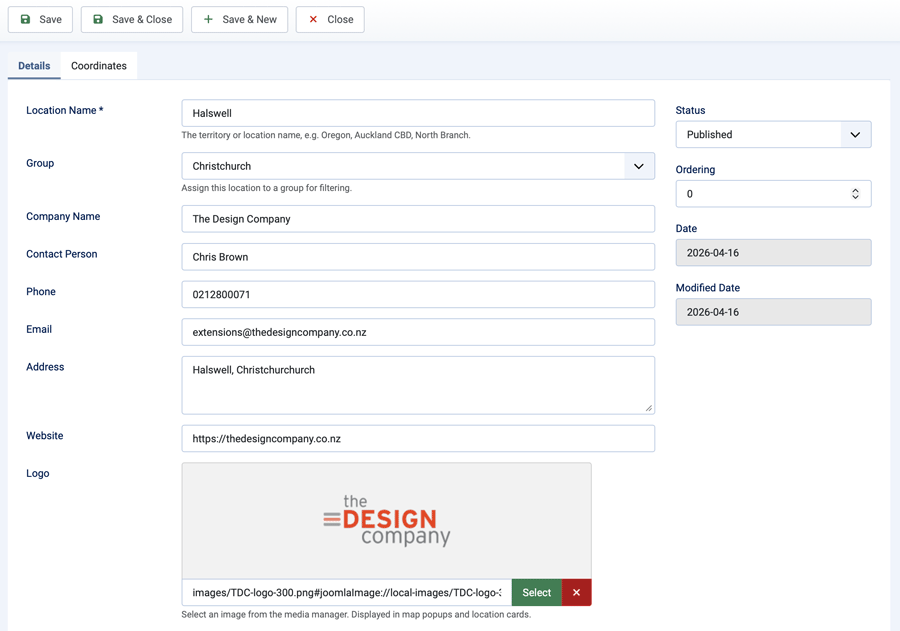
- Fill in the location details:
- Title — the location or territory name (shown on card and popup)
- Group — select the group this location belongs to
- Latitude / Longitude — decimal coordinates (e.g.
-36.8485, 174.7633). Find coordinates by right-clicking any point on Google Maps and selecting the coordinates from the context menu - Logo — optional image, selected from the Joomla media library. Recommended size: 300×100px (3:1 ratio), transparent PNG or SVG
- Company, Contact, Phone, Email, Address, Website — all optional; any fields left blank are simply not displayed
- Click Save & New to add another location immediately, or Save & Close when done.
Tip: filter the Locations list by group before clicking New and that group will be pre-selected on the new location form.
Step 3 — Display the map
You have two options: a module (embed in any page position) or a menu item (full-page view).
Option A — Module
- Go to System → Site Modules.
- Click New and choose MapLab — Map.
- Give the module a title and assign it to a position.
- In the Map Settings tab, select your map and adjust the display options.
- Assign the module to the pages where it should appear (Menu Assignment tab).
- Click Save & Close.
Option B — Menu Item
- Go to Menus → [your menu] → Add New Menu Item.
- Click Select next to Menu Item Type and choose MapLab → Location Map.
- Configure the display options in the Map Settings tab.
- Click Save & Close.
Settings Reference
Both the module and the menu item share the same display settings.
| Setting | Default | Description |
|---|---|---|
| Map | Default Map | The map dataset to display. Populated from your published maps. |
| Map Height (px) | 540 | Height of the Leaflet map in pixels. Min 200, max 1200. |
| Default Group | All Groups | The group pre-selected when the page loads. Leave as All Groups to show all locations on arrival. |
| Show Filter Buttons | Yes | Show the group filter button row above the map. |
| Show Location Cards | Yes | Show the card grid of locations below the map. |
| Cards Per Row (desktop) | 4 | Number of cards per row on desktop (2, 3, or 4). Always single-column on mobile. |
| Marker Colour | #e8820c | The colour of the map pin markers. Hover and active state is generated automatically. |
How the Map Works
- Markers — Each published location with valid coordinates gets a pin on the map. Markers are SVG-based and styled using your chosen marker colour.
- Hover / popup — Hovering a marker changes it to a dark highlight colour. Clicking opens a popup with the location’s full details and a Google Maps link.
- Filter buttons — Clicking a group button filters both the map markers and the card grid simultaneously. The map zooms to fit the visible markers.
- Cards — Each card shows logo, company, address, contact name, phone (with tel: link), email link, and website link.
- Multiple instances — You can place multiple MapLab modules on the same page; each operates independently.
Finding Coordinates
MapLab uses decimal latitude/longitude coordinates.
- Google Maps — right-click any point on the map; the coordinates appear at the top of the context menu. Click them to copy.
- What3words — convert at what3words.com.
- GPS / phone — most GPS apps display decimal coordinates in location info.
Tip: Latitude is the north/south value (negative = south hemisphere). Longitude is the east/west value (negative = west of the prime meridian). Auckland, New Zealand is approximately -36.8485, 174.7633.
CSS Class Reference
MapLab uses BEM-style class names scoped to .maplab-wrap. All styles can be overridden in your template’s CSS.
Layout
.maplab-wrap— Outer wrapper.maplab-filter-buttons— Group filter button row.maplab-map— Leaflet map container.maplab-cards-grid— Card grid container.maplab-cards-2/.maplab-cards-3/.maplab-cards-4— Column variants
Filter buttons
.maplab-btn— Individual filter button.maplab-btn.is-active— Active/selected button state
Cards
.maplab-card— Individual location card.maplab-card__logo— Logo image container.maplab-card__body— Card text content area.maplab-card__title— Location title.maplab-card__company— Company name.maplab-card__address— Address block.maplab-card__contact— Contact name.maplab-card__links— Phone / email / website link row.maplab-cards-empty— No locations message
Markers and popups
.maplab-marker— Leaflet divIcon wrapper (SVG pin).maplab-popup-wrap— Leaflet popup class override.maplab-popup— Inner popup content.maplab-popup__logo/__title/__company/__address/__contact/__link— Popup sections.maplab-icon— Inline SVG icon (phone, email, website)
Changelog
v1.0.0 — 2026-04-15
- Initial release
- Component with full admin CRUD for maps, groups, and locations
- Frontend module: Leaflet map, group filter buttons, location card grid
- Site view: full-page map available as a Joomla menu item
- Menu item params with live database dropdowns for map and group selection
- Save & New on Group and Location edit forms
- Location count column in Groups list with link-through to filtered Locations list
- Marker colour picker with auto-generated hover state
- Default Map created automatically on install
Support
The Design Company
extensions.thedesigncompany.co.nz
info@thedesigncompany.co.nz
License
MapLab is released under the GNU General Public License version 2 or later.
Copyright © 2026 The Design Company. All rights reserved.