
MetaLab — Documentation
Bulk-edit page titles and meta descriptions for Joomla 5 & 6 — in a spreadsheet.
MetaLab exports every page’s browser title, meta description and robots setting to a CSV file. Edit it in Excel, Numbers or Google Sheets, then import it back. MetaLab shows you every change before anything is saved, writes each value to the field Joomla actually uses for that page, and keeps a history so any import can be undone.
Requirements
- Joomla 5.0 or later (including Joomla 6)
- PHP 8.1 or later
- MySQL 5.7+ or MariaDB 10.3+
Installation
- Download the
pkg_metalab-1.1.0.zippackage file. - In your Joomla admin panel, go to System > Install > Extensions.
- Upload the package file and click Upload & Install.
- The installer sets up the MetaLab component and turns on the System - MetaLab plugin.
- Go to Components > MetaLab to get started.
Getting Started
Check your pages
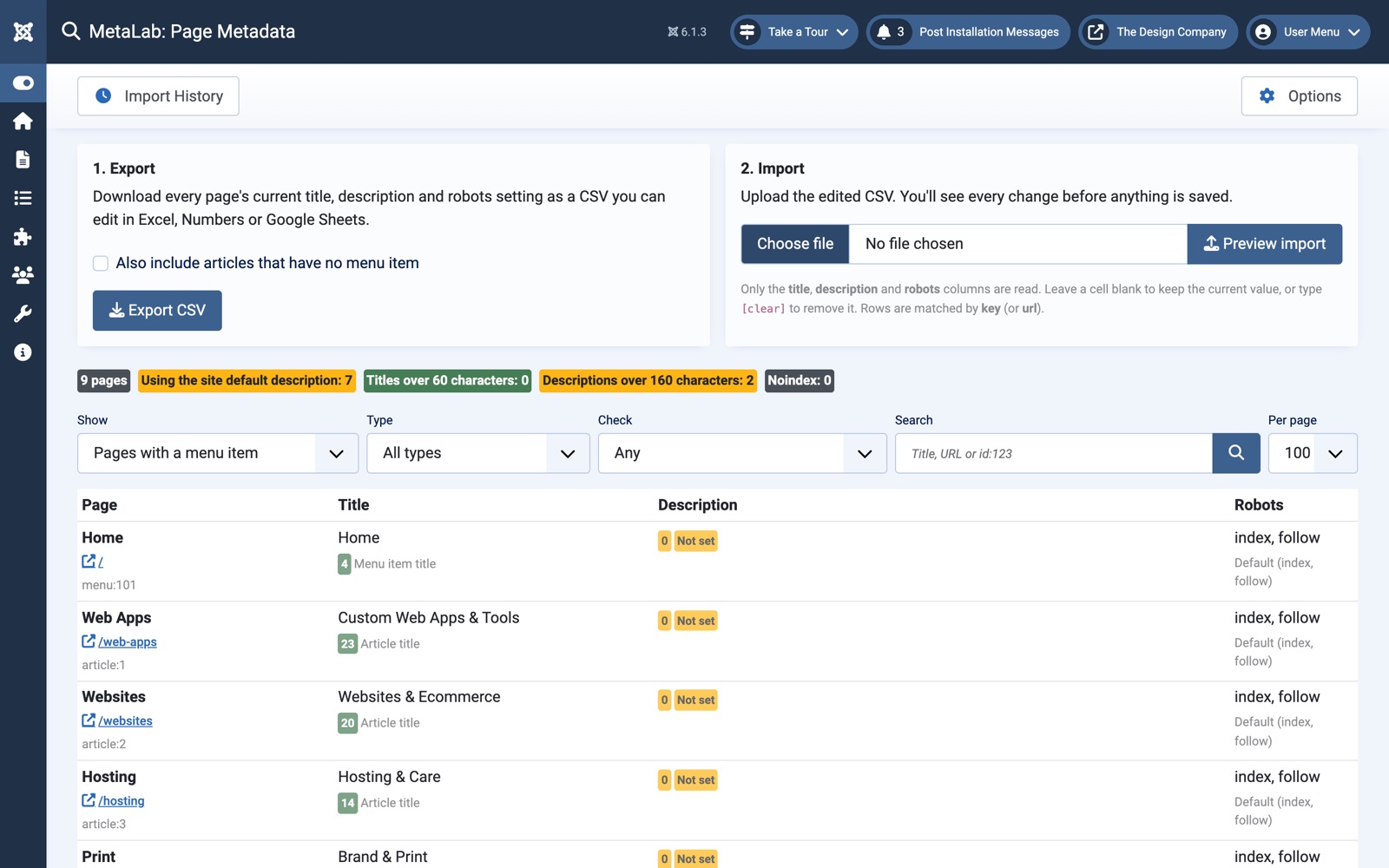
Open Components > MetaLab. The Pages screen lists every page on your site that has a menu item, with:
- its browser title and meta description, with character counts
- its robots setting
- where each value comes from — the menu item, the article, the category or the site default
The summary at the top shows how many pages use the site default description, how many titles are longer than 60 characters and how many descriptions are longer than 160.
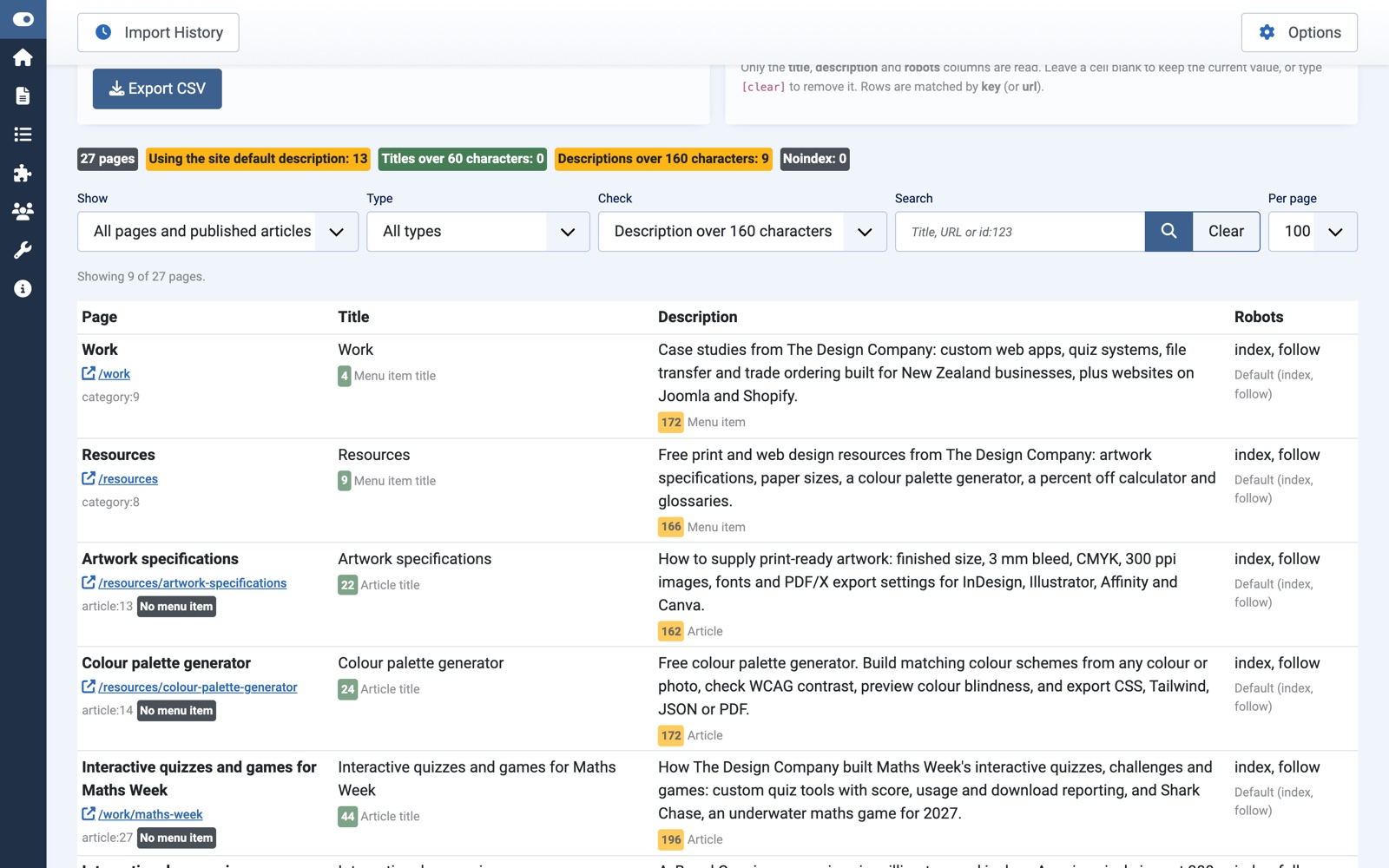
Use the filters above the list to narrow it down:
- Show — Pages with a menu item (the default) or All pages and published articles.
- Type — articles, categories or other menu item pages.
- Check — only pages using the site default description, with a title over 60 characters, with a description over 160 characters, or set to noindex.
- Search — matches the page name, title, description or URL. Type
id:123to find a page by its article, category or menu item ID.
Your filters are remembered while you’re logged in. When the list shows all pages, the export’s Also include articles that have no menu item box is ticked for you.
Export
- Under 1. Export, click Export CSV.
- Tick Also include articles that have no menu item if you want those too.
- Open the downloaded file in your spreadsheet app.
Edit
Change the title, description and robots columns. Leave the other columns as they are — MetaLab uses key and url to match each row to its page.
- Leave a cell blank to keep the page’s current value.
- Type
[clear]to remove a value, so the page falls back to the next one in line (for example the site default description). - Robots must be one of
index, follow,noindex, follow,index, nofollowornoindex, nofollow.
Save the file as CSV. UTF-8 is best, but MetaLab also reads the other formats Excel saves.
Import
- Under 2. Import, choose your CSV and click Preview import.
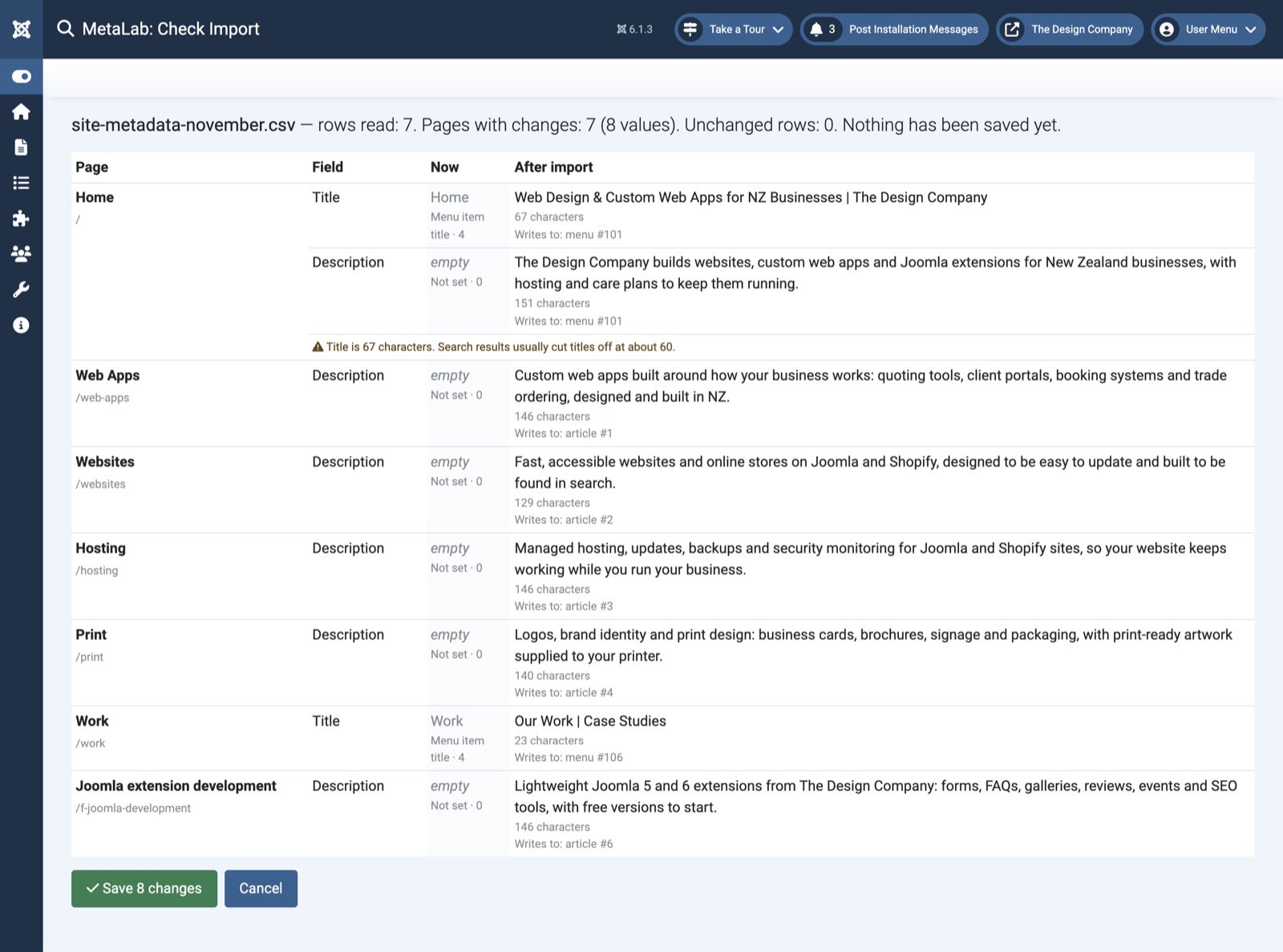
- Check the preview. It lists every change, page by page, showing the current value, the new value and where it will be written.
- Click Save changes to apply them, or Cancel to leave everything as it was.
Where MetaLab Writes Each Value
Joomla can store a page’s title and description in several places, and which one it shows depends on the type of page. MetaLab follows the same rules as Joomla, so a value you import is the value visitors and search engines see.
- Article with menu item(s) — the title goes on every menu item that links to the article. The description and robots go on the article, which takes priority over the menu item.
- Article without a menu item — everything goes on the article, including its Browser Page Title.
- Category list or blog — everything goes on the menu items that link to the category. Joomla shows the menu item’s description instead of the category’s own.
- Any other page (contacts, events, login and so on) — everything goes on the menu item.
An article linked from two menu items appears as one row, and its title is updated on both menu items so they stay in step.
The System - MetaLab plugin
Some components don’t use the Meta Description you set on their menu items, so those pages show the site default description instead. The System - MetaLab plugin fixes this: when a page is the one a menu item links to, and the component hasn’t set its own description, the plugin uses the menu item’s description.
It only applies on the exact page the menu item links to. For example, a single event opened from a calendar menu item keeps its own description.
Checks Before Saving
The import preview warns you about:
- Long titles — over 60 characters, where search results usually cut them off
- Long or short descriptions — over 160 characters, or under 70
- Duplicate titles — when two pages would end up with the same title
- Rows that don’t match a page — for example a page that has since been deleted
- Invalid robots values
- Rows from another site — if a row’s URL doesn’t match its key, the file was probably exported from a different site, so the row is skipped rather than changing the wrong page
- Duplicate rows for the same page
Rows with problems are listed and skipped. The rest of the file can still be saved.
Import History and Undo
Go to Components > MetaLab > Import History to see every import: when it was made, who made it, the file name and each value it changed.
Click Undo to put back the values an import replaced.
MetaLab never overwrites someone else’s work:
- If a page is edited between the preview and the save, that change is skipped and reported.
- If a page is edited after an import, undo leaves it alone and reports it.
Permissions
MetaLab uses Joomla’s standard permissions, under Components > MetaLab > Options > Permissions:
- Access Administration Interface — view the Pages screen, export and see the history.
- Edit — import changes and undo imports.
Super Users have both.
Tips
- Site name in titles: if Global Configuration > Site > Include Site Name in Page Titles is turned on, Joomla adds the site name for you. MetaLab reminds you, so you don’t add it twice.
- Moving between sites: export from the site you’re importing into. Keys are database IDs, which differ between sites. To reuse a file from another site, delete the key column so rows are matched by URL.
- Spreadsheet formats: comma, semicolon and tab-separated files all work, as do UTF-8, UTF-16 and Windows-1252 encodings.
Support
For help, feature requests or bug reports, visit the MetaLab page on the TDCLab extensions site: extensions.thedesigncompany.co.nz
Licence
MetaLab is free software released under the GNU General Public License v2 or later.