
PreviewLab — Documentation
A simple preview password gate for Joomla 5 & 6.
PreviewLab protects a development, staging, or coming-soon frontend behind one shared password. It is built for site owners, designers, and agencies who need clients or reviewers to access a private Joomla site without creating user accounts.
Requirements
- Joomla 5.0 or later (including Joomla 6)
- PHP 8.1 or later
- A Joomla site where requests reach Joomla before any full-page cache, CDN, or reverse proxy serves the page
Installation
- Download the
pkg_previewlab-1.1.0.zippackage file. - In your Joomla admin panel, go to System > Install > Extensions.
- Upload the package file and click Upload & Install.
- The installer sets up the PreviewLab system plugin and adds the PreviewLab Control module to the administrator Home Dashboard.
- Set a preview password from the dashboard module, or go to System > Manage > Plugins and open System - PreviewLab.
The plugin is enabled on install, but the site stays open until a preview password is set.
Getting Started
Protecting the Site
- Open System > Manage > Plugins.
- Edit System - PreviewLab.
- Set Enable Protection to Yes.
- Enter a Preview Password.
- Click Save.
- Visit the frontend in a private browser window to confirm the password gate appears.
PreviewLab only protects the site frontend. The Joomla administrator area is excluded so admins can continue working normally.
Sharing Access
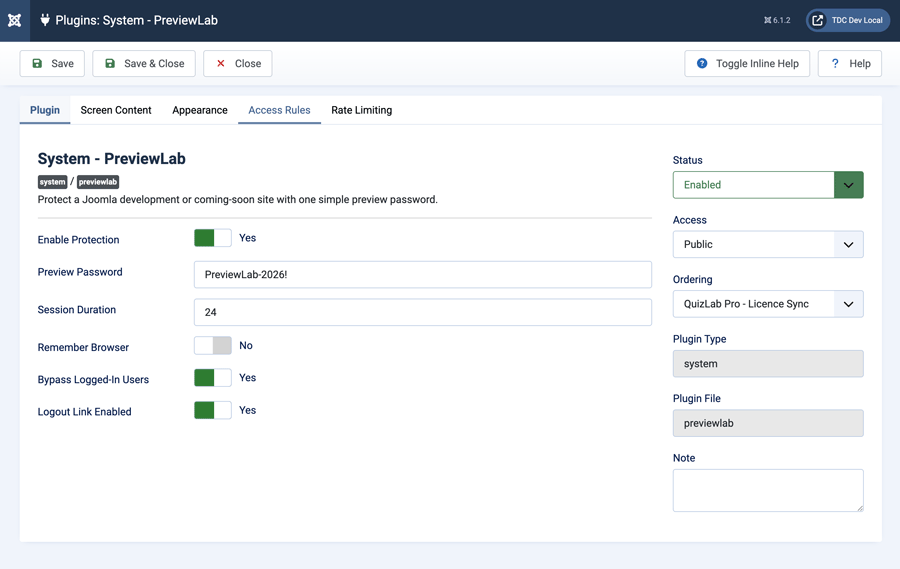
Send the preview password to approved reviewers. After they enter it successfully, PreviewLab gives their browser a signed, HTTP-only access cookie. Access lasts for the configured Session Duration (hours) or until the browser is closed, whichever comes first, and is independent of Joomla's own session lifetime.
If Remember Browser is enabled, access survives the browser being closed and lasts for the configured number of days. Changing the preview password immediately invalidates all existing access.
[image - PreviewLab plugin settings showing password, session duration, remember browser, and logged-in bypass controls]
Preview Gate Content
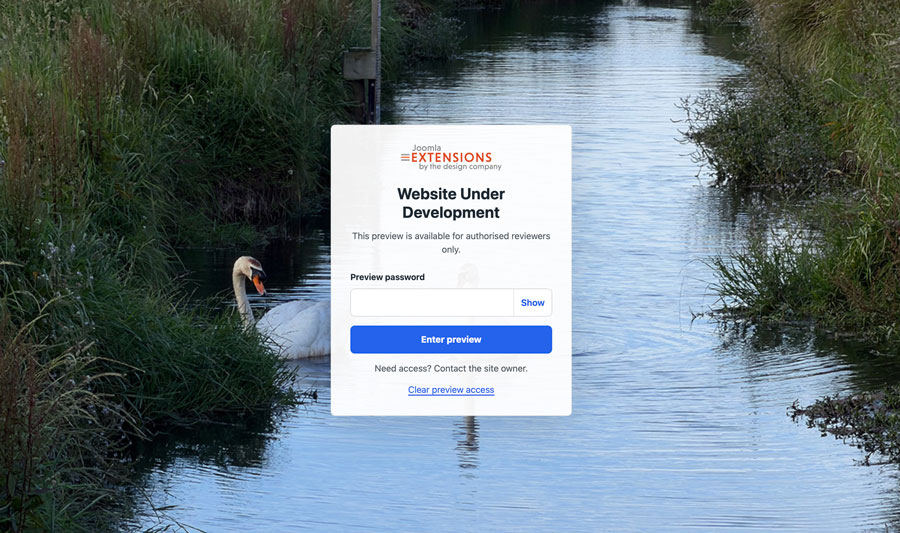
Use the Content settings to customise the screen reviewers see before they enter the site.
- Logo and Logo alt text - add site or client branding.
- Heading - default: "Website Under Development".
- Intro text - short message above the password field.
- Password label - label shown beside the password input.
- Button text - text for the submit button.
- Error message - shown after an incorrect password.
- Contact hint - optional support or access request note.
- Footer text - optional footer line below the gate panel.
The password field includes a show/hide control for easier reviewer access.
Appearance
PreviewLab includes a responsive gate screen that can be styled from plugin settings.
- Theme - light, dark, or auto (follows the visitor's system light/dark setting).
- Background colour - page background.
- Panel colour - password panel background.
- Text colour - main text colour.
- Accent colour - button and focus colour. Button text automatically switches between light and dark for legibility.
- Background image - optional page background image.
- Background image blur - soften the uploaded background image.
- Custom CSS - add project-specific refinements when needed.
Colours left at their defaults follow the selected theme. Any colour you change overrides the theme.
h2>Access Rules
URL Exclusions
Add one rule per line, relative to the site root (subfolder installs are handled automatically). Lines starting with # are ignored.
/shop - exact path.
/shop* - any path beginning with /shop.
/index.php?option=com_example&view=feed - the listed parameters must match exactly, with no extra parameters.
/index.php?option=com_example* - the option value must begin with com_example; extra parameters are allowed.
Query rules compare the request's actual parameter values, so they cannot be satisfied by adding a matching parameter to an unrelated URL. Joomla Ajax requests (option=com_ajax) are always allowed so extensions that rely on them keep working.
The Joomla administrator, API (/api), and CLI are never affected by PreviewLab, so they do not need exclusions.
Media Files
Images, CSS, JavaScript, and other files in /media and /images are served directly by the web server and do not pass through Joomla, so they remain reachable by direct URL. Avoid placing confidential files in public folders before launch.
Feeds
Protect Feeds is enabled by default, so RSS and Atom feeds require the password. Turn it off to let feed readers through.
IP Allowlist
Add trusted IPv4 or IPv6 addresses or CIDR ranges, one per line. Matching visitors bypass the preview password.
Examples:
203.0.113.10
203.0.113.0/24
2001:db8::/32
If the site is behind a proxy, load balancer, or CDN, enable Behind Load Balancer in Joomla's Global Configuration so PreviewLab sees each visitor's real IP address.
Rate Limiting
PreviewLab limits repeated failed password attempts from the same IP address. Attempts are tracked in Joomla's cache (no database tables), so clearing cookies or starting a new session does not reset the count.
- Rate limit enabled - turn failed-attempt protection on or off.
- Failed attempt limit - number of failed attempts before lockout.
- Lockout window - time window in minutes.
- Lockout message - message shown while locked out.
By default, an IP address is locked out after 5 failed attempts within 10 minutes. Locked-out requests receive an HTTP 429 response. Reviewers sharing an office connection share the same count.
Logout and Preview Status
PreviewLab includes a stable logout URL:
/?previewlab_action=logout
When Logout link enabled is on, authenticated preview visitors also see a small frontend status panel with a logout link. This helps clients and reviewers clear preview access without needing browser tools.
Administrator Dashboard Module
The package includes PreviewLab Control, an administrator module for quick daily use.
The module can:
- Show whether the frontend is open or protected.
- Enable or disable the system plugin.
- Enable or disable preview protection.
- Edit and copy the preview password.
- Link to the full plugin settings.
- Link to the site frontend.
On a new install the module is published to the Home Dashboard automatically. It is only shown to Super Users. Changes saved from the module take effect immediately, even when Joomla caching is enabled.
[image - PreviewLab Control administrator module showing protected status, switches, password field, copy button, and save button]
Important Notes
PreviewLab runs inside Joomla. It cannot protect files or pages that are served before the request reaches Joomla, including content served directly from a CDN, reverse proxy, or static full-page cache. Joomla's own System - Page Cache plugin is fully supported: the gate is checked before cached pages are served.
The password screen is sent with Cache-Control: no-store and X-Robots-Tag: noindex, nofollow, so browsers and caches do not store it and search engines do not index it.
For launch day, disable preview protection or unpublish the system plugin after the site is ready to go public.
Support
For help, feature requests, or bug reports, visit the PreviewLab page on the TDCLab extensions site:
https://extensions.thedesigncompany.co.nz
Licence
PreviewLab is free software released under the GNU General Public License v2 or later.