
QuizLab Pro — Documentation
A professional quiz component for Joomla 5 and 6.
QuizLab Pro 2 lets you create interactive quizzes with eight assessable question types plus informational Content Slides, then organise quizzes into Learning Paths for structured programmes, competitions, and assessment journeys. It features percentage-based scoring with configurable pass marks, time limits, instant feedback, manual essay review, reusable PDF certificate templates, a global question bank, performance reports, learning-path progress tracking, and CSV question import. The frontend quiz and path experiences are smooth, AJAX-driven views that work on all devices.
Requirements
- Joomla 5.x or 6.x
- PHP 8.1+
- MySQL 5.7+ or MariaDB 10.3+
Installation
- Download the latest release from extensions.thedesigncompany.co.nz.
- In your Joomla administrator, go to System > Install > Extensions.
- Upload the
pkg_quizlabpro-*.zippackage and click Upload & Install. - QuizLab Pro appears in the administrator sidebar under Components > QuizLab Pro.
- For authenticated updates, copy your QuizLab Pro licence key from your account at extensions.thedesigncompany.co.nz, then enter it in Components > QuizLab Pro > Options > Pro Licence.
Getting Started
Creating Your First Quiz
- Go to Components > QuizLab Pro > Quizzes and click New.
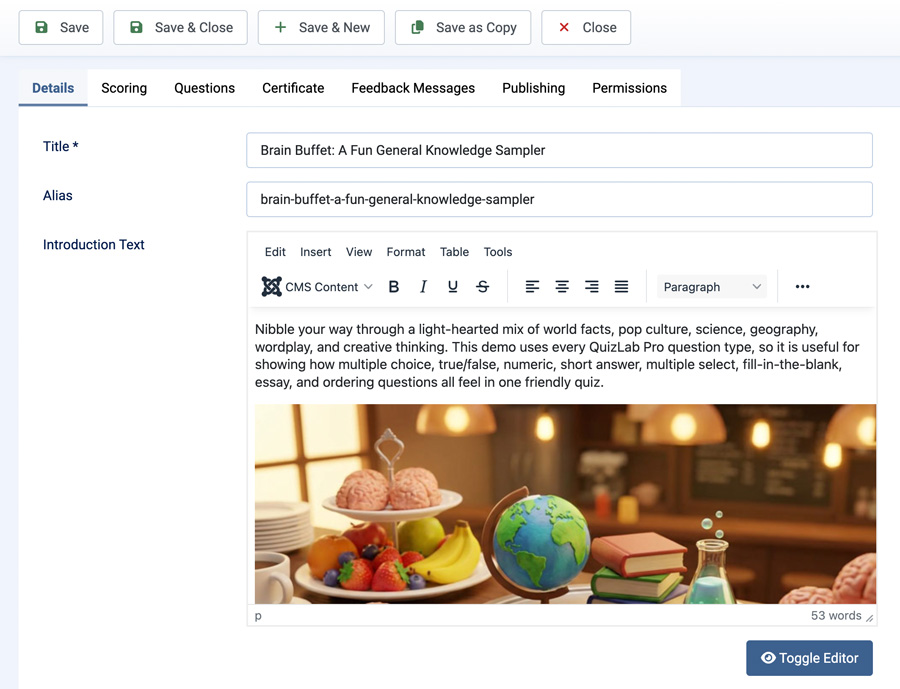
- Enter a Title for your quiz.
- Optionally add an Introduction Text and Instructions — these are shown to learners before they start.
- Set the Passing Score percentage (default is 80%).
- Configure result display, time limit, and certificate options under the relevant tabs.
- Set the status to Published and click Save.
Adding Questions
- From the quiz edit screen, click Manage Questions (or navigate to the Questions view from the quiz list).
- Click New to add a question.
- Choose the Question Type — see Question Types below for the full list.
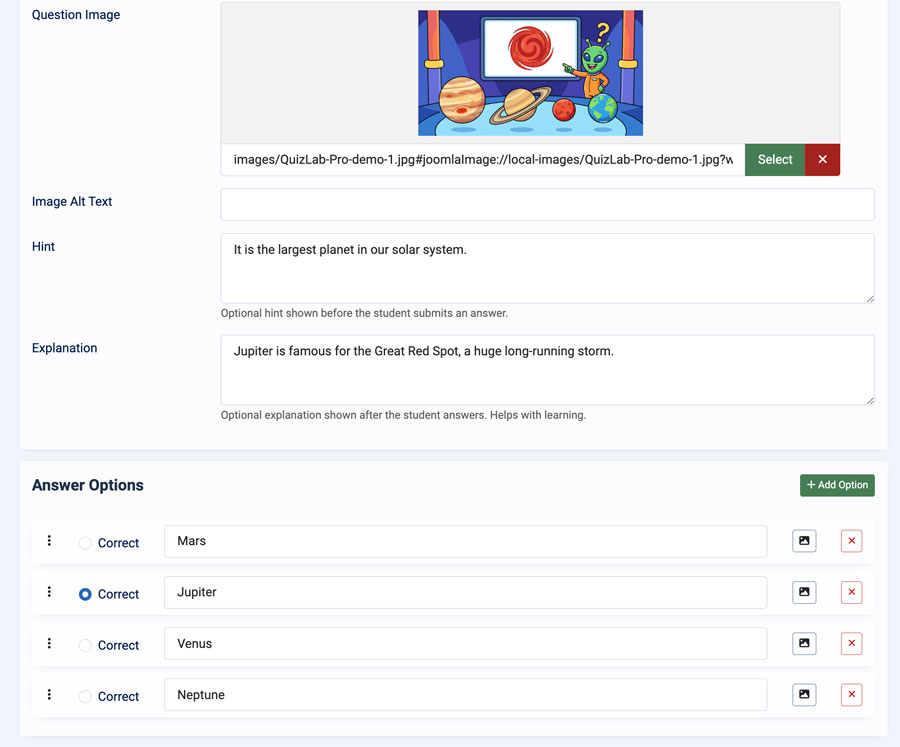
- Enter the Question Text using the editor. You can include images, formatting, and links.
- Set a Category and Difficulty to organise questions for the bank and reporting.
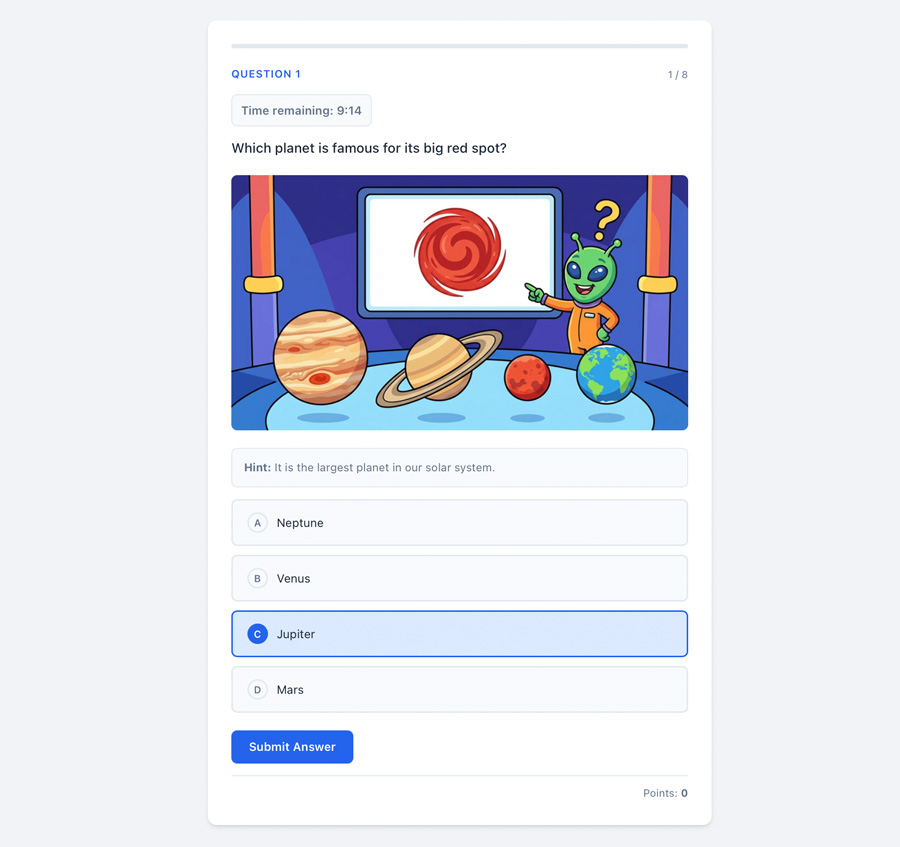
- Optionally set Points (default 1), a Hint, and an Explanation shown after answering.
- Click Save or Save & New to add more questions.
Creating a Menu Item
- Go to Menus and edit the menu where you want the quiz to appear.
- Click New to add a menu item.
- Set the Menu Item Type to QuizLab Pro > Quiz.
- Select the quiz from the Select Quiz dropdown.
- Save the menu item.
Learners can now access the quiz from your site's frontend.
Creating a Learning Path
Learning Paths let you group published quizzes into an ordered programme.
- Go to Components > QuizLab Pro > Learning Paths and click New.
- Enter a Title, optional description, and choose the path mode: Learning Path, Competition, or Assessment Programme.
- Choose the completion rule, scoring method, leaderboard setting, and certificate options.
- Save the path, then add quizzes as rounds in the order learners should complete them.
- Create a menu item using QuizLab Pro > Learning Path for a single path, or QuizLab Pro > My Learning Paths for a learner dashboard.
Embedding in Articles
QuizLab Pro also includes a content plugin for inline article embeds. Use a shortcode with a published quiz ID:
{quizlabpro id=123}
Optional width and class attributes are supported:
{quizlabpro id=123 width=100% class=featured-quiz}
The shortcode renders the quiz inline, using the same frontend quiz experience as the menu item view.
Question Types
Multiple Choice
The most common question type. Add 2 to 20 answer options and mark one as correct. Options can include text and optional images. Learners click an option to select it, then submit.
True / False
A simplified two-option question. When you select True/False as the type, the options “True” and “False” are auto-populated. Select which one is the correct answer.
Numeric
Learners type a number as their answer. You set:
- Correct Answer — The expected numeric value (supports decimals)
- Tolerance — The acceptable margin of error (default 0, meaning exact match required)
For example, if the correct answer is 3.14 and the tolerance is 0.01, any answer from 3.13 to 3.15 will be accepted.
Short Answer
Learners type a short text answer. You define one or more accepted answers. Matching is case-insensitive. Useful for single-word or brief factual responses.
Multiple Select
Similar to Multiple Choice, but learners must select all correct answers from a checkbox list. You mark two or more options as correct. Scoring is based on an exact match of the selected set.
Fill in the Blank
A sentence is presented with a blank ({blank}) that the learner must complete. You define one or more accepted answers. Matching is case-insensitive.
Essay / Long Answer
Learners write a free-text response. Essay answers cannot be automatically scored — they move the attempt to Pending Review until an admin manually awards points via the Review Queue. See Essay Review below for the full workflow.
Ordering
Learners receive a set of options in a shuffled order and must drag or move them into the correct sequence before submitting. You enter the options in the correct order when creating the question. Scoring is based on an exact sequence match.
Scoring & Results
Percentage-Based Scoring
QuizLab Pro uses percentage-based scoring. Each question has a Points value (default 1). The final score is calculated as:
Score % = (Points Earned / Total Points Possible) × 100
The learner passes if their score percentage meets or exceeds the quiz's Passing Score setting. Essay points are excluded from the denominator until they are manually reviewed.
Pass Mark
Set the passing score on the quiz edit form under the Scoring tab. The default is 80%. You can set any value from 0% to 100%.
Time Limits
Set an optional time limit (in minutes) on the Scoring tab. A countdown timer is shown during the quiz. If the timer expires before the learner finishes, the attempt is automatically submitted with any unanswered questions scored as zero. Timed-out attempts calculate the percentage against the full set of served questions.
Attempts Allowed
Set the maximum number of attempts a learner may make. Set to 0 for unlimited attempts.
Require Login
Enable Require Login to restrict the quiz to authenticated Joomla users only.
Navigation Mode
- Free — Learners can move between questions in any order.
- Linear — Learners must answer questions in sequence and cannot go back.
Randomisation
- Randomise Questions — Shuffles the question order for each attempt.
- Randomise Answers — Shuffles the answer options within each question.
- Questions to Show — Draw a random subset of questions from the full bank per attempt.
- Category Quotas — Specify how many questions to draw from each category or difficulty level for balanced randomised sets. Use rules like
Safety=5,category:Safety=5,difficulty:easy=5,difficulty:medium=5, ordifficulty:hard=5.
Result Display
After completing a quiz, learners see a results screen showing their score percentage, pass or fail status, points earned, and number of correct answers.
- Summary Only — Shows the score and pass/fail status
- Full Review — Also shows each question with whether the learner answered correctly, plus any explanations
Essay Review
Quizzes with Essay/Long Answer questions use a two-stage result flow:
- The learner submits the quiz. Auto-marked questions are scored immediately. Essay answers are saved as Pending Review.
- An admin (or authorised frontend reviewer) opens the attempt, reads each essay answer, awards points, and optionally leaves feedback.
- On saving the review, the attempt total is recalculated and the final result is released to the learner.
Admin Review Queue
Go to Components > QuizLab Pro > Review Queue to see all pending attempts. Filter by quiz, date, or search by learner name. Click any row to open the attempt, enter points for each essay answer, and save.
Frontend Review Queue
Authorised QuizLab Pro reviewers can access a Review Queue menu item from the frontend to see pending essay attempts and save manual grades without needing full admin access.
Certificate Release
Certificates are only available after an essay attempt has been reviewed, the final score has passed, and results are visible. Logged-in learners will see the certificate link appear on the My Results page once review is complete.
Certificates
When a learner passes a quiz or completes a certificate-enabled Learning Path, they can generate a PDF certificate.
How It Works
- Enable certificates on the quiz edit form under the Certificate tab.
- When a learner passes (and any essay answers have been reviewed), a certificate form appears on the results screen.
- Logged-in learners skip name/email entry — their Joomla account details are used automatically.
- Guest learners enter their name and optionally their email.
- They click Generate Certificate and receive a downloadable PDF.
Certificate Templates
QuizLab Pro 2 supports reusable certificate templates as well as the original legacy presets.
Reusable templates are managed under Components > QuizLab Pro > Certificate Templates. Each template can define page orientation and size, background image, background fit and opacity, overlay colour, border options, default typography, colours, and positioned text fields with token content.
Reusable templates can be assigned to quizzes and Learning Paths. They are designed for branded certificates, CPD awards, school programmes, and path-completion certificates.
Legacy quiz certificates can still choose from four design presets on the Certificate tab: Modern, Classic, Minimal, and Bold.
Certificate Customisation
- Branding Text — Custom organisation or course name shown at the top
- Logo — Upload an image to replace the branding text
- Primary Colour — Controls learner name, branding, divider, and border
- Accent Colour — Controls bars and decorative details
- Show Score / Time / Date / ID — Toggle which details appear on the certificate
- Custom Text Fields — Override the certificate title, intro line, completion wording, and footer. Supports tokens such as
{learner},{quiz},{score},{date},{time},{certificate_id}, and{verification_url}. Path certificates can also use path-focused values such as overall score, rounds completed, CPD hours, and CPD points where configured.
Certificate IDs & Verification
Each certificate receives a unique ID. A public verification URL is included on the certificate so recipients can confirm its authenticity.
Admin Certificate Preview
Use the Preview button on the Certificate tab to see how the certificate will look before learners generate it.
Certificate Settings (Component Options)
- PDF Orientation — Landscape (default) or Portrait
- Save PDF to Server — Optionally save a copy of each certificate to the server
Leaderboard
Enable the leaderboard on the Scoring tab of a quiz. A Leaderboard menu item type is available to display top scores for that quiz on the frontend. Entries are based on completed, non-pending attempts. Learning Paths can also enable a combined leaderboard for path-level competitions.
My Results
Logged-in learners can access a My Results menu item to review all their past attempts for any quiz. Each entry shows the quiz name, score, pass/fail status, date, and a link to the full attempt detail. After a manually reviewed essay attempt passes, the certificate link appears automatically.
Learning Paths
Learning Paths are the main version 2 workflow for grouping quizzes into a structured learner journey.
Admin Setup
Use Components > QuizLab Pro > Learning Paths to create and manage paths. A path can represent an ordered course, a quiz series, a competition, or a multi-quiz assessment programme.
- Mode — Learning Path, Competition, or Assessment Programme
- Scoring Method — Weighted percentage, raw points, or competition points
- Completion Rule — Complete all required rounds or complete a minimum number of rounds
- Leaderboard — Optional combined leaderboard
- Path Certificate — Optional completion certificate using a reusable certificate template
- CPD Hours / Points — Optional recognition values for certificate output
Rounds
Each round points to an existing quiz. Rounds can be marked required or optional, ordered for display, and configured with unlock behaviour such as immediate access or completion of a previous round.
Frontend Path View
A Learning Path menu item shows the path description and status, required round progress, overall score, round status, the next available action, and certificate availability after completion.
My Learning Paths
The My Learning Paths menu item gives logged-in learners a dashboard of available paths, current progress, completion status, and the next round to continue.
Path Reports
Open a path report from the Learning Paths list to review participants, completion status, overall scores, round progress, pending reviews, and path certificate counts. Reports can be exported to CSV.
CSV Import
Import questions in bulk from a spreadsheet by exporting to CSV format.
How to Import
- From the Questions view, click Import CSV in the toolbar.
- Upload your CSV file and configure the import settings:
- Delimiter — Comma (default), semicolon, or tab
- First row is a header — Enable if your CSV has column headers
- Import Mode — Append, Update existing, or Replace all
- Preview the data in the table below the upload form.
- Click Import to process the file.
CSV Format
Each row in the CSV becomes one question. The minimum required columns are question and correct.
Required columns:
question— The question textcorrect— For MC/TF/Multiple Select: the option number(s) that are correct. For numeric: the correct numeric answer.
Option columns (for MC/TF/Multiple Select/Ordering):
answer_1throughanswer_20(oroption_1throughoption_20)
Optional columns:
question_type—multiple_choice,true_false,numeric,short_answer,multiple_select,fill_blank,essay, ororderingpoints,category,difficulty,explanation,hintnumeric_answer,numeric_toleranceaccepted_answers— Pipe-separated accepted answers for Short Answer and Fill in the Blankquestion_image,question_image_alt
Import Modes
- Append — Adds new questions after any existing ones
- Update existing — Matches CSV rows to existing questions by position. Only non-empty fields are updated. Extra rows are added as new questions.
- Replace all — Deletes all existing questions and options, then imports fresh from CSV
Sample CSV
Click Download Sample CSV on the import screen to get a template file with example questions of each type.
Quiz Experience
Frontend Flow
The quiz runs as a single-page AJAX application with three screens:
- Intro Screen — Shows the quiz title, introduction text, instructions, question count, pass mark, and time limit (if set). Learners click Start Quiz to begin.
- Question Screen — Displays one question at a time with a progress bar, question counter, and running score. Learners answer and click Submit Answer. Instant feedback shows whether they were correct, along with any explanation. Click Next Question to continue.
- Results Screen — Shows the final score, pass/fail status, and optionally a question-by-question review. If the learner passed and certificates are enabled (and any essay answers have been reviewed), a certificate generation form appears.
Session Recovery
If a learner's browser tab is accidentally closed during a quiz, their progress is saved. Returning to the quiz page will resume from where they left off.
Customisable Labels
On the quiz edit form under the Feedback Messages tab, you can customise correct/incorrect feedback messages and button labels (Start Quiz, Submit Answer, Next Question, Try Again). Leave any field blank to use the default text.
Question Bank
The global Question Bank (Components > QuizLab Pro > Question Bank) lets you browse, search, and manage questions across all quizzes in one place.
- Summary Cards — Total questions, published questions, source quizzes, categories, and questions needing attention
- Search & Filter — Search by text or category; filter by publish state, type, category, difficulty, and signal
- Usage Column — Shows whether a question is shared across multiple quizzes, with hover text listing quiz names
- Copy to Quiz — Select questions and copy them into another quiz (duplicate detection skips already-present questions)
- Bulk Metadata — Update category and difficulty for multiple selected questions at once
- Duplicate — Create a copy of a question directly from the bank
Question Performance Reports
Open Components > QuizLab Pro > Reports to see per-question analytics.
Each question row shows answer volume, correct/incorrect counts, average score, average time, answer distribution (for MC/Multiple Select/TF questions), common wrong answers, and a signal (Weak, Pending Review, No Attempts, or Healthy).
Filter by quiz, question type, category, difficulty, or signal. A Category & Difficulty Performance panel below the table summarises performance by category and difficulty level.
Click Export CSV to download the current filtered report including answer distribution and common wrong answers.
Admin Dashboard
The QuizLab Pro dashboard (Components > QuizLab Pro > Dashboard) shows:
- Total Quizzes — All quizzes (including unpublished)
- Published Quizzes — Currently active quizzes
- Learning Path Statistics — Published paths and learner progress
- Total Attempts — Completed quiz attempts
- Certificates Issued — Total certificates generated
- Pending Review — Attempts waiting for essay grading (links to the Review Queue)
- Quiz Statistics — Per-quiz breakdown. Click a quiz title to open Question Reports filtered to that quiz.
Managing Attempts
The Attempts view (Components > QuizLab Pro > Attempts) lists all completed quiz attempts with learner name, score, pass/fail status, completion date, and time taken.
Filtering
Filter attempts by quiz, pass/fail status, date range, or search by learner name/email.
Attempt Detail
Click any attempt to see the full detail: each question, the learner's answer, points earned, and the final score. Essay answers can be graded directly from this screen.
Cleanup
- Delete — Remove selected attempts and their associated answers and certificates
- Clear All — Remove all completed attempts at once
CSV Export
Export a rich attempt report from the toolbar including result state, average answer time, incorrect question count, manual review totals, and certificate details.
Component Options
Access via the Options button on any QuizLab Pro admin toolbar.
Basic Settings
- Default Pass Percentage — Default passing score for new quizzes (default 80%)
- Enable Attempt Logging — Whether to record quiz attempts
- Keep Attempt Records (Days) — How long to retain attempt data (default 365 days)
Certificate Settings
- PDF Orientation — Landscape or Portrait
- Save PDF to Server — Store a server-side copy of generated certificates
Image Settings
- Max Image Width/Height — Maximum dimensions for question images
- Allowed Image Types — Permitted image file extensions (default: jpg, jpeg, png, webp)
Support
For questions, bug reports, or feature requests, visit extensions.thedesigncompany.co.nz and submit a support request from the QuizLab Pro extension page.
Licence
QuizLab Pro is released under the GNU General Public License v2 or later. See GNU GPL v2.